
QSDA Pro 3.6 introduces Custom Flags — a way to enforce your organization’s unique standards alongside QSDA’s built-in analysis.
In addition to built-in QSDA flags that expose findings like errors and best practices, you can now define additional flags specific to your site.
Do you have unique company standards like:
- Every App and master measure should have a description?
- Apps in the Finance stream should have Section Access enabled?
- Mobile Apps should have no more than ten objects per sheet?
You define the triggering condition, flag category and detailed flag description. Any triggered flags will appear in QSDA alongside the built-in flags. Custom flags use a distinctive icon  to distinguish them from built-in flags
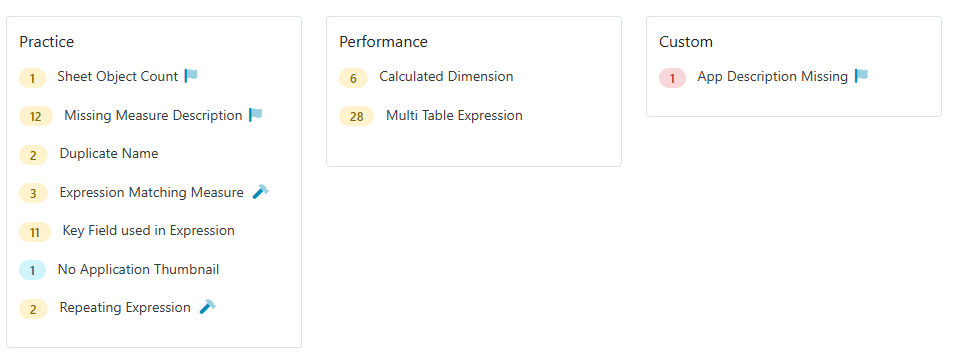
You can assign the new flag to one of the built-in categories like “Practice” or assign to the new “Custom” category.
Create and edit rules under Admin > Custom Flags
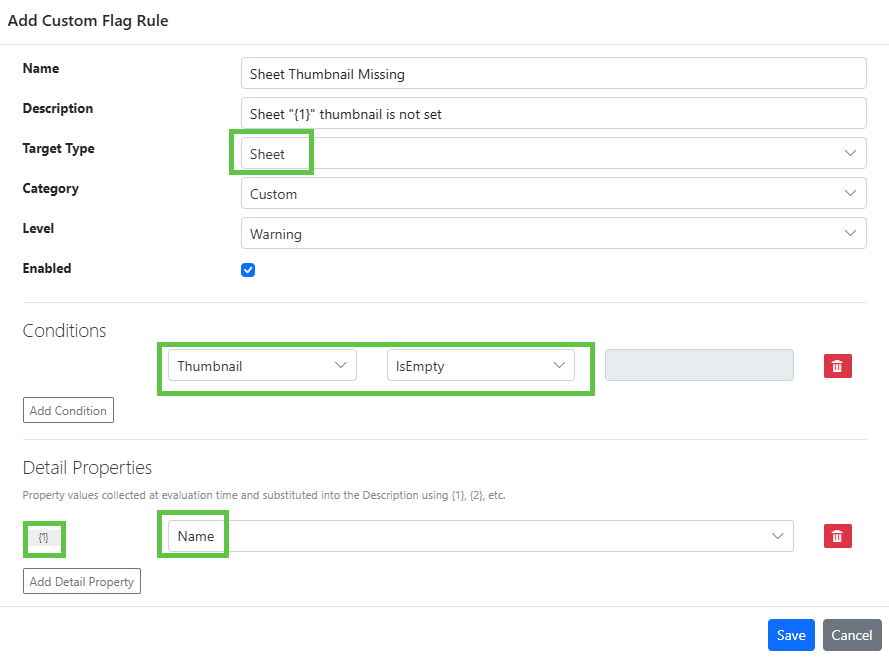
In the rule above, we define that every Sheet must have a thumbnail. When we select a Target Type of Sheet, properties of Sheet are made available in the Conditions and Detail Properties dropdowns. QSDA evaluates these conditions during analysis and raises the flag when they are met.
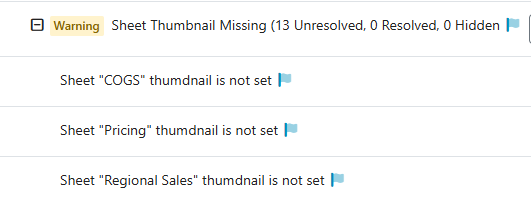
The Detail Properties are used to collect {n} placeholder values that can be substituted in the Description field. When this flag is raised in the QSDA analysis, the Description placeholder will be filled in like this.
You may have multiple conditions defined with and/or.

We’ve done our best to expose the data we think customers will need for rules. We currently expose these Target Types:
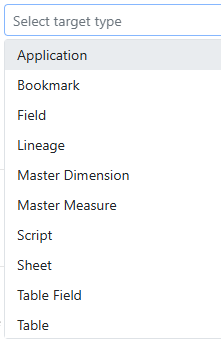
Each target type offers a number of different properties. If we missed something you need or you just have a question about how we can meet a specific requirement, please reach out to our friendly Motio support team.
