QSDA Pro is the tool every Qlik Sense developer needs. Here’s a roundup of the changes available in release 3.7.
New Features
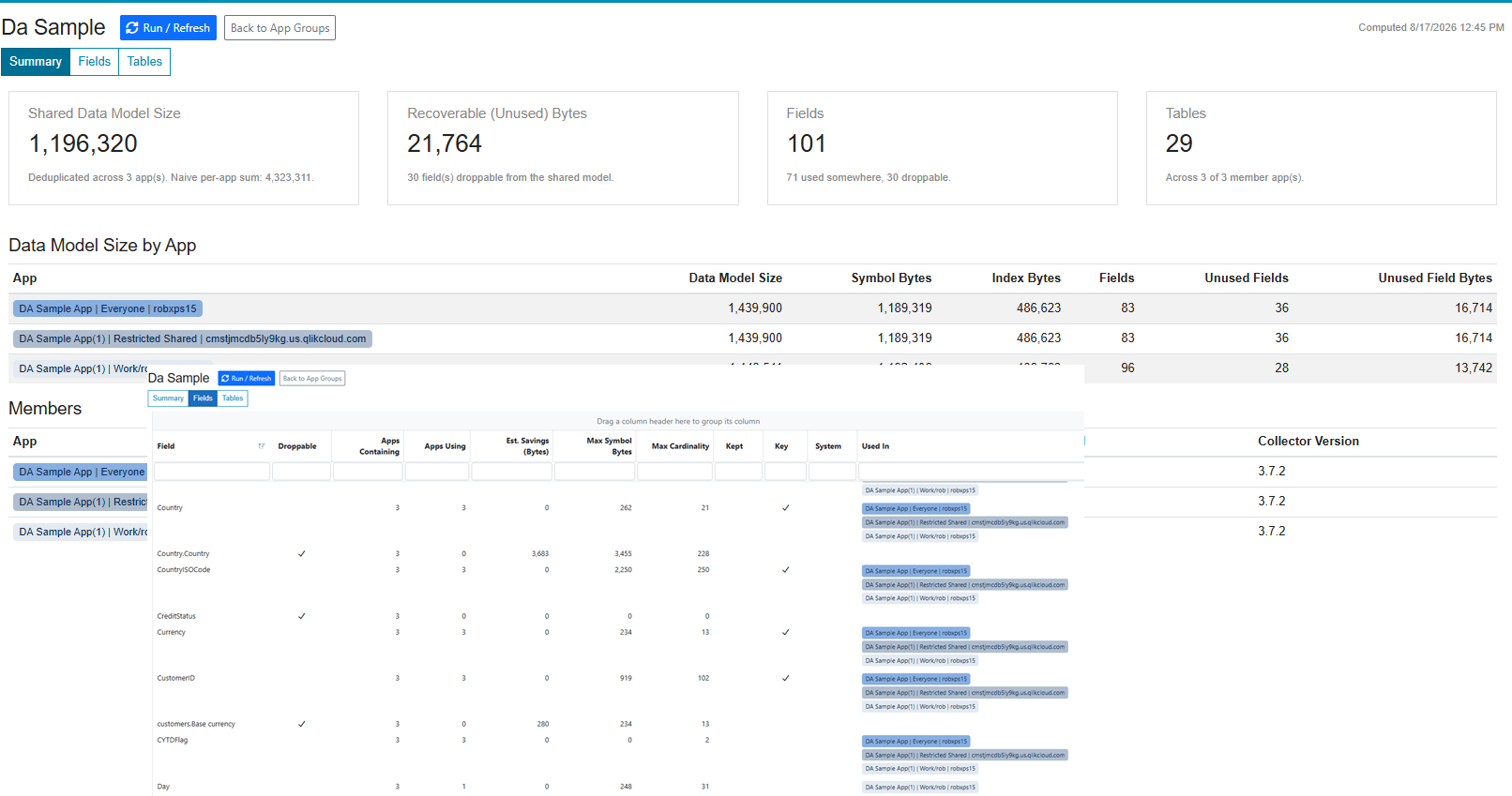
Utilities > App Groupsaggregate unused field analysis across a group of apps, allowing you to build a drop field list for fields that are unused across all apps in the group. You define what apps make up the group. The group might consist of various published and unpublished variations of an app, or apps that share a common data model or ancestor QVD.
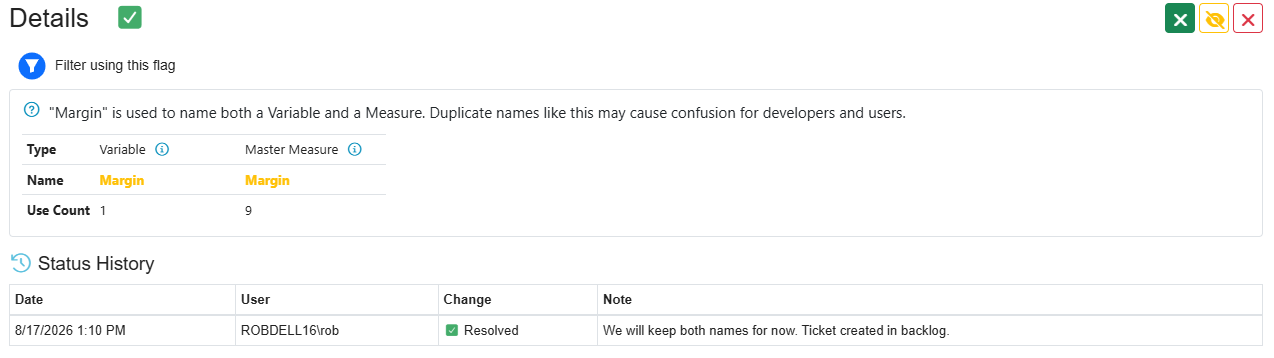
Flag History. Changing a flag status — for example from Unresolved to Resolved — creates a history record containing the user ID and an optional note. The history is displayed in flag details and on the new Flag Notes page.
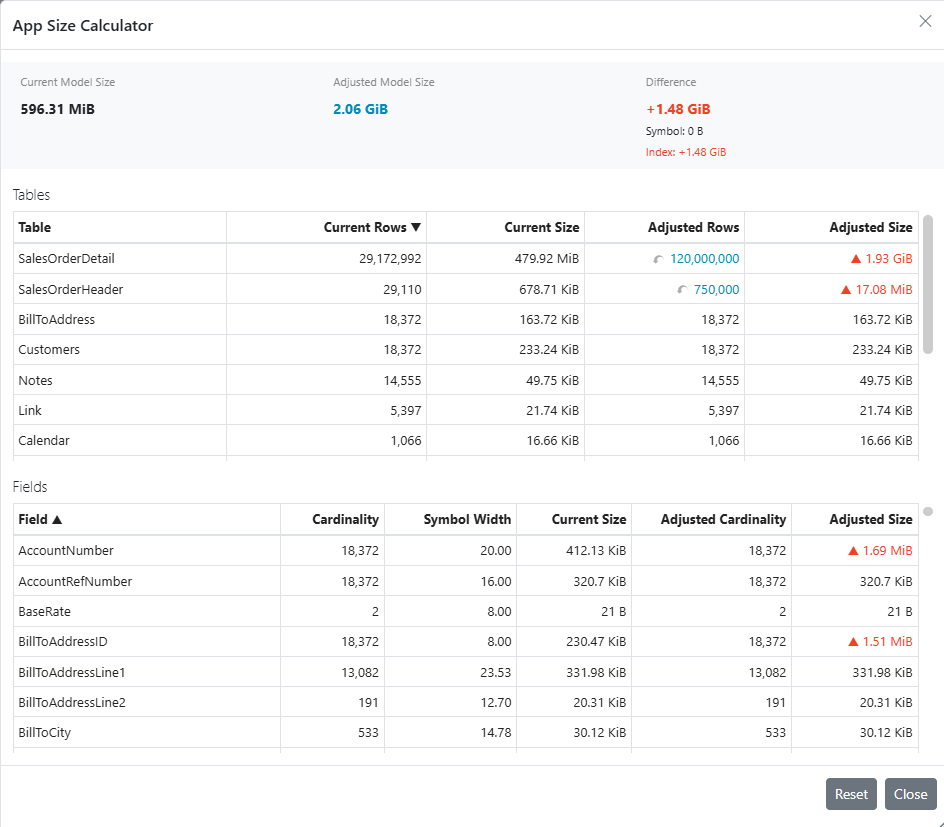
Tools > App Size Calculatoris a new planning tool that lets you calculate app size using different data volumes. You can adjust table row counts and field cardinalities to predict the impact of future growth on app size.
A new Flag “Master Item holding unused field” indicates that this unused master item is the only consumer of a field that would otherwise be considered an unused field. Auto-fix is available for this flag.
A Command Line Interface (CLI) is now part of the installation package. You can find qsda-cli.exe in the \QsdaCli directory of your installation. the QSDA CLI may be used to perform tasks like starting an analysis or extracting analysis output. This is useful when building site specific automations or using AI agents.
Usability Improvements
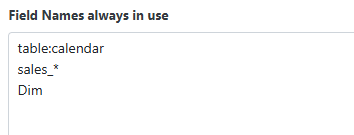
Field names always in use definition may use wildcards in field names.
In the Connection Definition stream/space filter property, clicking the input box presents a dropdown list of spaces or streams to choose from.
QSDA API documentation has been updated with improved navigation and additional endpoint detail.
Resource grids allow for grouping by dragging any column heading.
Administration Updates
Product configuration such as collection options and custom flag definitions has moved to a new user role “Project Manager“. This role can be assigned to Qlik team leads while security adjacent configuration such as connections and user management remains with the Admin role. When upgrading, current Admin users will automatically be assigned the new Project Manager role.
API key management has moved from Control Panel > Configuration > API Security to Admin > API Keys. This new section allows you to create and manage multiple QSDA API Keys. Any existing API key will automatically migrate to the new section.
What a great week at QlikConnect 2026. Interesting announcements, stimulating discussions and catching up with old friends. I had a great time with my Motio colleagues meeting customers and sharing our solutions.
Here are a few of my takeaway thoughts.
AI Readiness
I was struck by the keynote theme that “Qlik customers are closer to agentic AI than they think”. Trusted data is the foundational prerequisite for using AI. Most Qlik customers are well along on that journey. Our data models are gold. If trusted data is the foundation, what kind of supports do we need to build on top of that?
Implementation of analytics AI will require investment in guardrails, observability, data sovereignty, additional contexts and building trust.
Building trust is achieved through a combination of competence, learning, success and time. Yes, it takes time.
Implementation of supervised agentic AI — AI taking actions in conjunction with a human — will require a greater level of the aforementioned structural supports. Much more context, especially about other systems and data, will be required.
Unsupervised agentic AI — taking actions without human intervention — will require higher levels still.
Successfully validating and guiding AI requires discernment that comes from a deep knowledge of the business domain.
The announced Qlik Semantic Catalog will be a critical piece in defining and provisioning the increased contexts required for agentic AI to succeed.
Implementing agentic AI using Qlik features may be the fastest and most reliable way for Qlik customers to roll out agentic.
If you want to follow along with a real life case study of agentic AI, check out Major League Baseball’s rollout of automated calling of balls and strikes (“RoboUmp”). The story has it all, value proposition, building trust, phased implementation, course corrections, labor and culture disruptions. I enjoyed this podcast on the topic https://99percentinvisible.org/episode/663-roboump-hits-the-big-leagues/.
Chat AI is the new Excel
Where users were asking “Can I get this in Excel?” they are now asking “Can I get this in Claude?”. Embrace it.
Disruptions
There will likely be significant societal disruptions from Agentic AI. Increases in water and power consumption. Shifts in the labor market including displaced jobs, geographic relocation of business resources and increased social isolation. New and unforeseen policy and legal issues to work out.
If Agentic AI takes over the tasks performed by junior employees, how will we develop institutional knowledge in future leaders? Will they be able to attain the required levels of discernment? I’m reminded of dystopian sci-fi stories like “Silo” where the inhabitants of a future civilization are meticulously following rules inherited from “old-earth” but they have no idea why the rule exists.
These disruptions may follow the arc of the Industrial Revolution where displacing craft workers with machines wrought enormous disruption in the social fabric but eventually settled into increased prosperity and welfare.
Qlik App Generation
LLMs are poor at generating Qlik App artifacts like Qlik script because they have limited data to train on. It’s unlikely we could expose enough real world examples to catch up. The solution may be to rethink how things like data models are built. For example, could we build data models using languages well known to LLMs such as python?
Training a private LLM to the competency of a Qlik-Dev seems impractical today. Providing a structured bridge like MCP may be a solution that would allow us to use LLM reasoning to invoke the correct tools but not expect AI to write the final code. I won’t be surprised if another leap in AI tech presents additional paths.
After Qlik Connect 2024 I postulated that Gen AI could eliminate the need for visual analytics charts as used in the analysis process. I believe this is where we are heading. Dashboards and reports will still exist, but the analytics function itself will change. I see much of the analysis process moving into chat and the charts generated there would be simple illustrative charts to support the current conclusion. I definitely heard some counter opinions this week.
Thanks to Qlik for putting on such a well run and informative event, and thanks to all who took the time to sit down with me and chew on these ideas.
QSDA Pro 3.6 introduces Custom Flags — a way to enforce your organization’s unique standards alongside QSDA’s built-in analysis.
In addition to built-in QSDA flags that expose findings like errors and best practices, you can now define additional flags specific to your site.
Do you have unique company standards like:
Every App and master measure should have a description?
Apps in the Finance stream should have Section Access enabled?
Mobile Apps should have no more than ten objects per sheet?
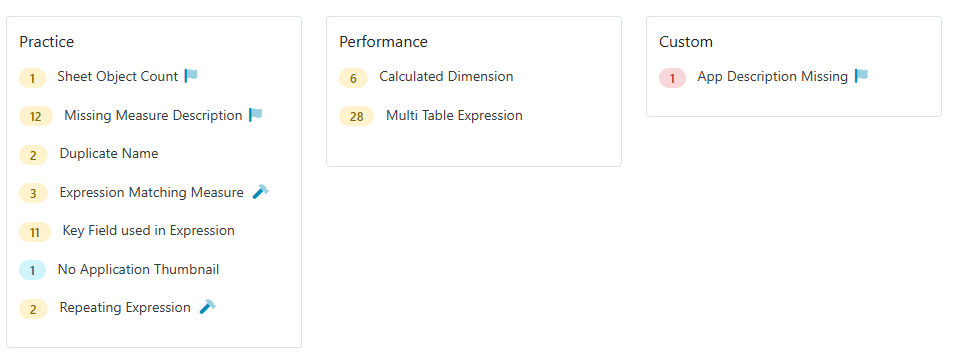
You define the triggering condition, flag category and detailed flag description. Any triggered flags will appear in QSDA alongside the built-in flags. Custom flags use a distinctive icon to distinguish them from built-in flags
You can assign the new flag to one of the built-in categories like “Practice” or assign to the new “Custom” category.
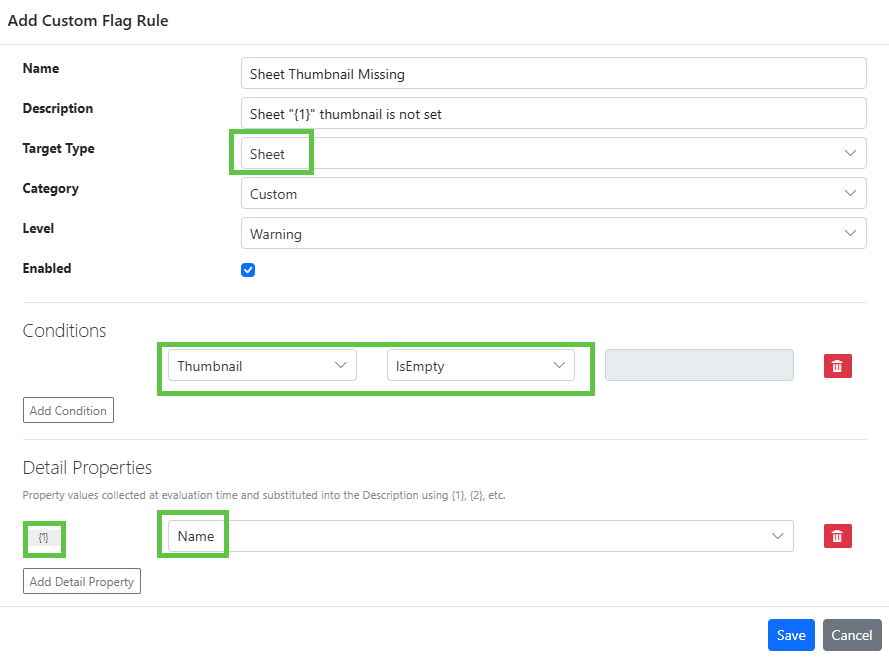
Create and edit rules under Admin > Custom Flags
In the rule above, we define that every Sheet must have a thumbnail. When we select a Target Type of Sheet, properties of Sheet are made available in the Conditions and Detail Properties dropdowns. QSDA evaluates these conditions during analysis and raises the flag when they are met.
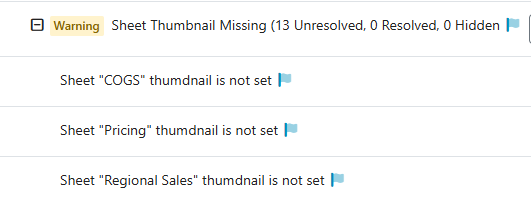
The Detail Properties are used to collect {n} placeholder values that can be substituted in the Description field. When this flag is raised in the QSDA analysis, the Description placeholder will be filled in like this.
You may have multiple conditions defined with and/or.
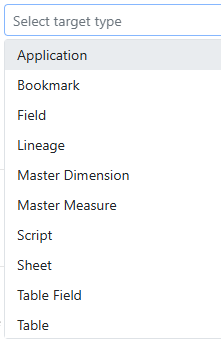
We’ve done our best to expose the data we think customers will need for rules. We currently expose these Target Types:
Each target type offers a number of different properties. If we missed something you need or you just have a question about how we can meet a specific requirement, please reach out to our friendly Motiosupport team.
Summary: A rich set of regular expression functions has recently been added in Qlik Sense cloud and client managed. In this post I’ll introduce some use cases for this feature and show how to instantly become a regular expression master.
Regular Expressions (RegEx) is a powerful string pattern matching language that has been available in many programming and scripting languages for decades. Qlik Sense Cloud and the client-managed May 2025 release brings the full power of RegEx to Qlik via a new set of Chart and Load Script functions.
What can you do with RegEx?
Validate that a field value matches a specific pattern. e.g. Is this a valid phone number or credit card?
Extract substrings from a larger string.
Reformat a string to match your rules.
Here’s an example to get us started. I’ll validate that “Phone” values match the allowed format for US phone numbers.
The string ‘^(?:([2-9]\d{2})\ ?|[2-9]\d{2}(?:-?|\ ?))[2-9]\d{2}[- ]?\d{4}$’ is a regular expression pattern that represents the validation rule for US phone numbers. Like any powerful and syntactically terse programming language, RegEx patterns can look a little daunting at first. Here’s the explanation of what that pattern enforces.
This regular expression for US phone numbers conforms to NANP A-digit and D-digit requirements (ANN-DNN-NNNN). Area Codes 001-199 are not permitted; Central Office Codes 001-199 are not permitted. Format validation accepts 10-digits without delimiters, optional parens on area code, and optional spaces or dashes between area code, central office code and station code. Acceptable formats include 2225551212, 222 555 1212, 222-555-1212, (222) 555 1212, (222) 555-1212, etc.
Did I write that pattern myself? No, I copied it off an internet site. There are many internet repositories with thousands of patterns you can copy from. Those repositories have quickly been supplanted by AI chatbots.
Let’s look at another example. I recently answered a question on Qlik Community where the poster wanted to extract First & Last names from strings like:
James SmithMary JohnsonJohn WilliamsPatricia BrownRobert Jones-GarciaMichael MillerLinda Davis
The Qlik function ExtractRegEx is the function we want to use. I know enough RegEx off the top of my head to create a pattern to split on the capital letters and spaces. But how do I deal with the hyphen in “Jones-Garcia”? It would make my head hurt.
AI is a great tool for generating RegEx patterns! Turn to your AI chatbot of choice. I use Copilot but I expect ChatGPT or any of the popular bots would do the job as well.
Asking Copilot to generate the pattern
The nice thing about this approach is I don’t have to explicitly state “..and handle hyphens”, I just supply sample data.
Is this pattern correct? You could just plug it into Qlik but I prefer to first validate using a RegEx tester. There are a number of free tools, regex101.com is the one I usually use.
After validating and potentially tweaking the pattern we use it in Qlik script like this:
I do recommend you spend 30 minutes learning the basics of RegEx to make best use of assistants and testing tools.
You may have used the Qlik script SubField function to split a string in multiple rows based on a delimiter such as a comma. But SubField won’t do when comma is part of a quoted string as is common in CSV files. The new SubFieldRegEx function handles this with ease.
Don’t quit if RegEx only gets you 90% of the way there. Stack some Qlik functions like the where clause above to finish the job.
RegEx implementations in other languages use an option flag to indicate a case-insensitive operation. Qlik has opted to use an additional function with the suffix “l” to indicate a case-insensitive operation. So:
MatchRegEx – case sensitive
MatchRegExl – case insensitive
A really nice feature of the Qlik MatchRegEx function is that it allows for multiple match patterns to be specified.
The Qlik RegEx functions are documented in the String Functions section. I do wish they had given the functions a separate section. I’ll summarize the available functions here with the caveat that these are correct at this time of this posting.
ExtractRegEx() extracts text from an input string expression using the specified regular expression pattern. The function returns a null value if no matches are found.
IndexRegEx() searches the input string and returns the starting position of the nth occurrence of the specified regular expression pattern.
MatchRegEx() compares the input string with one or more specified regular expression patterns, and returns the numeric location of the regular expression patterns that match.
ReplaceRegEx() returns a string after replacing one or more matches between an input string and a specified regular expression pattern.
SubFieldRegEx() extracts text from an input string expression, using the specified regular expression pattern as a delimiter.
There are a number of useful optional parameters, see the documentation for details. There is also ReplaceRegExGroup that I have not yet wrapped my head around. Feel free to post a use case in the comments.
Are you going to use these functions a lot? Probably not. But when you need to clean messy data or extract relevant data these functions can be invaluable. I’ll leave you with one last example, extracting data within HTML tags.
Longish post today where I show off the power of QSDA Pro to reduce Qlik App resources, saving you money and creating a more responsive experience for your users.
As a follow on to my last post “Help! My Qlik Cloud Reload Exceeds Quota!” I’m going to dive deeper into the available QSDA features to reduce memory requirements of a Qlik App. As a bonus we’ll use QSDA to improve the performance of a chart.
There are many good reasons to optimize your Qlik Apps to a leaner size. Smaller apps tend to perform better and place less demand on your server resources. If you are a Qlik Cloud customer, or planning a move to Qlik Cloud, App memory size impacts your license tier — and therefore your direct monthly costs.
In this post our starting point is I that have identified the App “BikeShop Sales” as having a large (597 MB) footprint. I got this information from Qlik App Metadata Analyzer as shown below.
Qlik App Metadata Analyzer
I could also have identified this memory footprint in QSDA Pro when we select this App from the list.
QSDA Applist
Let’s see how QSDA Pro can help. I’ll launch a new Analysis and give it the Description “Baseline”.
When the analysis completes press “View” to see the results.
QSDA Analysis Summary page
In the Resources card I see that unused fields occupy 383 MB — almost 2/3 of the base data model! Unused fields are fields that are not used anywhere in the front end. They can be removed without impacting the contents of charts or the user experience.
I also see some other suggested savings in dropping unused tables (“All fields unused but keys — 439 KB”) and a 530 KB savings by AutoNumbering keys.
A fast and simple way to remove unused fields is to drop them at the end of the script with a “DROP Fields …” statement. AutoNumbering is also best done at the end of the script. Let’s implement the QSDA recommendations. Open the Qlik Data Load Editor for “BikeShop Sales” in another browser tab.
The QSDA Tools menu provides a handy Script Generator to generate recommended script statements. Select the script generator from the Tools menu.
QSDA Tools menu
In the Script Generator > AutoNumber tab select the top checkbox to select all recommended fields. Press the “Copy” button to copy the generated AutoNumber statement to your clipboard. Paste the statements at the end of your Qlik Script. Repeat for the Drop Fields and Drop Tables tabs. (I won’t use the Load Statement tab just yet).
Now that I have updated the script with the AutoNumber and Drop statements, Reload.
Reload with AutoNumber, Drop Fields, Drop Tables
Returning to the QSDA App Card, I can see that Base App Memory is now 213 MB. Quite the savings from 507 MB!
App card after reload
At this stage, I recommend running a new analysis to confirm that the script changes have not introduced any problems or new issues.
Note that Reload Peak Memory is unchanged, because we loaded the unused data before we dropped it. Reload memory has an impact on the performance of on-prem servers and for Qlik Cloud, reload memory is a direct cost.
Can we use less reload memory by not loading the unused fields and tables? It may be that a field is used the load script but is not used in the front end, so you have to examine your script to determine. This very clean script loads directly from QVDs so the answer is clear.
I’ll start by commenting (or removing) the tables we don’t need instead of dropping them at script end. To identify the unused tables I can refer to the previously generated script, the Flags, or return to the Script Generator tool in the Baseline analysis.
What about Tables with both used and unused fields? Can I easily load just the used fields and omit the unused fields? QSDA Script Generator to the rescue again. Open the Script Generator > Load Statement in the Baseline analysis and sort on the “Unused Bytes” column. Select the SalesOrderDetail table.
A Load statement fieldlist for [SalesOrderDetail] will be created with unused fields commented out. You can exclude the unused fields entirely by unchecking the “Include Unused Fields” box. I’ll start with just the SalesOrderDetail table for now. Note that the other tables with big Unused Fields savings, Notes and Customers, are already being excluded completely.
Before reloading, I’ll remove the AutoNumber and Drop statements I added earlier. Many of those drops are no longer valid as I am not loading the fields at all. Here is the updated load script.
Updated script to exclude unused fields
After reloading, I return to the QSDA App Card. Reload Mem is reduced from 693 MB to 268 MB! I’ll run another analysis to see where things stand.
I can address the remaining unused fields with DROP Fields or using the Load Statement method. I will add the AutoNumber statements back in as well. I hope the process is clear enough now so I won’t show these remaining steps in detail here.
Let’s turn our attention to another great value of QSDA — Performance improvement. The “Calc Time Distribution” chart plots the calculation time of each chart in the App. I see I have an outlier that takes about 4 seconds to calculate.
What is this chart and why is is taking to long to calculate? Flip over to the Viz page and sort by the Calc Time column. The viz in question is a Table named “Salesperson Scorecard” on sheet “Dashboard” and it takes 4.142 seconds to calculate. Expanding the row shows the chart Dimensions and Measures and also exposes the “Viz Deconstruction” icon
Viz Details
Clicking the Viz Deconstruct icon will calculate each chart Measure in turn and tell us what is taking so long to calc in this chart. We can see the total calc time is over four seconds and measures three and four take considerably longer than the first two. But why?
Let’s focus on this chart to get some insight into the cause and solution of the poor performance. Back on the Viz page, Right-click the Viz of interest and select “Filter to Selected”. This will filter our pages to only those objects — Dimensions, Expressions, etc — associated with this Viz.
Click over to the Expressions page and we’ll see that our long running expressions have flags. Flags are the advice system of QSDA, identifying errors, bad practices and performance issues. Our two second expression “Longest Deal” has a “Key Field used in Expression” flag.
Clicking the “i” icon next to the flag will open the Flag Details panel which contains a link to the help article for this flag.
In the help article we’re informed that using a key field in an expression can sometimes cause poor performance. The article goes on to advise using a non-key field instead, creating a new field if necessary. I’ll take this advice and create a new field in the SalesOrderHeader table:
Reload and change the chart Measure to use the new field.
Max(Aggr(Sum(LineSales), SalesOrderRecord))
Run a new analysis to check the calc time of the chart (and check we didn’t impact anything else!). In the summary we’ll see a significant decrease in total app calc time and we can drill into our chart to see what’s changed.
Whoa! That measure has gone from 2 seconds to 0.008 seconds.
But Rob, didn’t I just blow up my RAM by making a copy of this big field? Don’t guess, use QSDA to see exactly what the cost is.
Additional RAM of SalesOrderRecord field
The cost is 50 KB of RAM and no significant increase in Reload Mem. Was it worth it? I think so.
If you chose to put the new field on the SalesOrderDetail table instead of SalesOrderHeader, the QSDA results will quickly show you that this was a bad idea. RAM is much increased and performance not so good.
QSDA Pro gives you the tools to:
Reduce your App memory and compute requirements.
Focused advice and insight for improving your App.
Compare different solutions and measure the impact of change.
Track your progress and document the impact of your work.
I hope this post makes it clear why I say that QSDA Pro is “the tool that every Qlik developer needs”.
Do you have questions about QSDA Pro or want to schedule a demo for your team? Reach out to us.
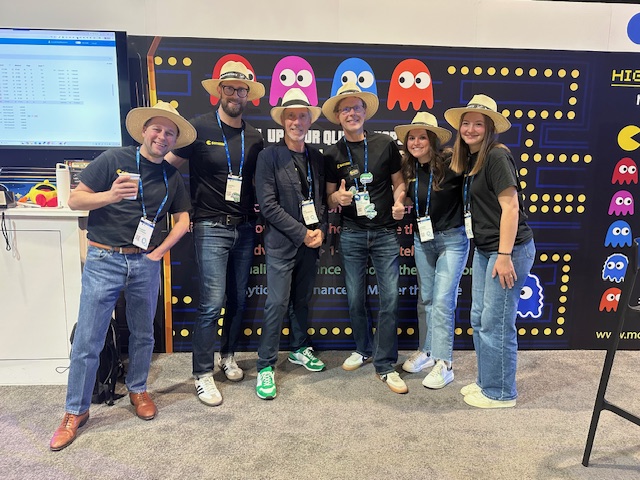
If you’re attending Qlik Connect in Orlando, stop by the Motio booth on the show floor. I’ll be there (guy in the hat) to answer your questions and show you even more features of QSDA Pro that can help you create leaner, cleaner and faster Qlik Apps.
If you are a Qlik Cloud (SaaS) customer you may have seen this dreaded message during script reload. Ack! Ack!
Your quota may be different than 25Mb, but the problem remains the same. How do I modify this application to fit within my subscribed quota?
QSDA Pro V3.1 to the the rescue! QSDA analyzes your app and provides recommendations and easy to use tooling to drop unused data and optimize the remaining data, potentially greatly reducing the size of your Qlik App.
QSDA needs a successfully loaded app for analysis, so our first step is to reload the app using the “Limited load” feature of the Qlik script debugger.
Click the Debug button in the Qlik script editor, check the Limited load option, accept the default of 100 rows and click “Run” to initiate the reload. The reload will come in under your quota. When the reload completes, key Ctrl-s to persist the data.
You don’t have a business-ready app, but this is enough for QSDA to scan all charts, expressions and master items to determine what data is actually required.
In QSDA Pro we now select our Cloud connection and select the app of interest, in this case “BikeShop Sales2”. Click the “Open” button to prepare the app for analysis. I will also uncheck the “Collect Calctime” option because chart calculation times are not meaningful with our limited data. Description is optional, in this case I’ve entered “Limited Load”.
Click the “New Analysis” button to launch the QSDA Pro analysis. The analysis may take a minute or two to complete depending on the capacity of your tenant and the current Qlik Cloud load. When the analysis is complete press the “View” button to see the results.
In the Summary view we see there are 89 unused fields. Unused fields are fields that are not used in any charts, master items or expressions. These are fields that can be dropped at the end of script without impacting the user experience in the app. The actual storage numbers (KiB) are not meaningful because we only loaded 100 rows. The bar chart is useful in that is indicates about 2/3 of our data is unused. Hope!
QSDA provides a Script Generator in the Tools menu to generate a “DROP Fields …” script statement for unused fields. Select the script generator from the Tools menu.
In the Script Generator > Drop Fields tab select the top checkbox to select all recommended fields. Press the “Copy” button to copy the generated Drop Fields statement to your clipboard.
Paste the Drop Fields statement at the end of your Qlik Script and reload.
Reload successful! Victory!
A subsequent QSDA analysis shows the app size has been reduced from the problematic 37Mb to 15MB!
QSDA Pro can quickly and efficiently get your Qlik Apps below your Qlik Cloud quota by pruning unnecessary data. Don’t pay for more than you need.
In a follow up post I’ll walk through some additional QSDA features to help you reduce Qlik app footprint even further and improve chart response time to boot.
Download QSDA Pro and try it for yourself. Or reach out to us to learn more about license options or arrange a demo or POC for your team.
-Rob
Are you going to Qlik Connect? I’ll be at the Motio booth on the show floor ready to demo QSDA Pro or answer any questions you may have.Or just to say Hej 🙂
Summary: Set Modifier field names and Set Identifiers are not validated by Qlik syntax check. QSDA Pro 2.5 validates everything and raises an “Unrecognized Name” flag for invalid names.
QSDA Pro syntax checks all expressions in a Qlik App using the Qlik syntax checker. You’re familiar with the Qlik syntax checker. It’s the message at the bottom of the expression editor that tells you your expression is “OK”.
The syntax checker is also good at telling you when the expression has an error, although it’s not always specific about the problem.
QSDA Pro, using the Qlik API version of syntax checker, tells you what is wrong with the expression:
The Qlik syntax checker has a significant limitation. It does not validate field names used in sets. Whether used in the API or the editor, the syntax checker will not raise an error if the field “EmpPurchase” does not exist in the data model.
This lack of validation can be a serious problem if “EmpPurchase” is removed or renamed in the data model. The expression will still return a number but the exclusion of employee purchases will no longer be applied. That could be a very subtle but important fail.
Recognizing this limitation and it’s potential impact, QSDA Pro 2.5 validates all names used in sets and will raise a new Quality flag, “Unrecognized Name”, if the name is invalid.
Another place this validation is extremely useful is Chart Filters in Qlik SaaS. The chart will cheerily display that filter “Expression2 > 1” is being applied. Even though field “Expression2” no longer exists in the data model.
But QSDA knows.
Ever use a bookmark as a set identifier? And then the bookmark got deleted or renamed?
I’ve used simple examples to demonstrate, but where this validation really shines is in longer expressions where it may be easier to overlook that something has gone wrong.
What does QSDA stand for? Qlik Sense Document Analyzer. The combination of data model and sheets we know as an “App” in Qlik Sense was called a “Document” in QlikView. When I first created this tool in 2009 to help maintain QlikView, I called it “Document Analyzer”. When it came time to create a similar tool for Qlik Sense, I stuck with the “DA” name as the function and usefulness of “Document Analyzer” was well established in the Qlik community.
Gitoqlokis a free chrome plugin that allows you to use a git repository such as GitHub, GitLab, Azure DevOps, etc, to manage all the pieces of Qlik Sense app — Measures, Sheets, Charts, Load script and more.
The plugin operates seamlessly within the Qlik Sense authoring experience to provide the power of fine grained version control you expect with git. You’ll see a list of changes and commit those changes as you would expect in any software development project. Of course there is collision detection, branching and merging and all the goodness you expect from git.
Because the Gitoqlok team understands the visual nature of Qlik development, you can view diffs in a visual format. A slider lets you pick a commit for compare.
You can also use the same slider in a non-diff “time machine” mode to see how the application sheets looked at any point in time.
Gitoqlok comes with a lot of very useful Qlik dev features, such as the ability to import a chart or script snippet from app to another. Or deploy an entire app from one server to another!
Most Gitoqlok features are free to use. Premium features and support are available in a reasonably priced subscription.
If you are attending QlikWorld next week Drop by the Motio booth (#315) to see more. Motio is also presenting two breakout sessions showcasing Gitoqlok, including their integration with my QSDA Pro tool.
Summary: While looking into long expressions I noticed that the optional sort-weight argument has an impact on the distinctness of Concat(distinct…). Incorrect use of sort-weight can generate bloated expressions containing redundant code.
In my work tuning Qlik Apps I sometimes encounter very long expressions. An expression many thousands of characters long can be difficult to debug or comprehend the expression goal. To help in working with long expressions I’ve added an Expression histogram and an Expression Decoder feature to my QSDA Pro product. (These features are currently in beta, generally available in early Feb).
I’ve noted expressions of length greater than 50k across apps from different customers. What did these expressions have in common that made them so large?
They used the Concat() function in $() to dynamically generate a part of the expression.
They used the optional sort-weight argument of Concat() incorrectly.
They were much bigger than necessary — sometimes 100x — but the expanded expression worked as intended.
In the process of reviewing the expressions I learned something surprising. As a reminder here’s the syntax of the Concat function:
This means that the set of distinct values is the combinations of string and sort_weight (if used). Let me demonstrate with an example. Here’s a sample data table.
For the expression: Concat(Dim, ',') we receive output "a,b,c,c,c“.
Adding the DISTINCT keyword: Concat(DISTINCT Dim, ',') we now get “a,b,c“.
Adding a non-distinct sort-weight argument: Concat(DISTINCT Dim, ',', RecId) we now get "a,b,c,c,c” again. More output than I expected. It’s a distinct list of the combinations of Dim and RecId.
Adding a distinct sort-weight argument: Concat(DISTINCT Dim, ',', Weight) we now get "a,b,c“.
How about if we used an unlinked data island field for sort-weight? The Island field has two values.
Concat(DISTINCT Dim, ',', IslandField) returns "a,b,c,a,b,c“. Item count is the product of Dim * IslandField values. Remember this for later.
Ok, this is all very interesting but the behavior is super obvious and I would notice it if it came up in my App. What’s this got to do with ginormous expressions?
Developers sometimes use Concat along with Dollar Sign Expansion (DSE) to generate dynamic expression fragments. For example to ignore all fields from several tables in a set modifier:
Sometimes $(=Concat(...)) is used to build the list inside a Pick() or Match(). These type of expressions frequently have awkward syntax including lots of “& chr(39) &” type stuff. Inevitably the expression gets built by copying and modifying an expression from elsewhere in the App. An expression that contains a sort-weight. A sort-weight that doesn’t get removed. It may be an island field or a field that has a many to one relationship. The result is an expanded expression that works but is larger than it needs to be. No one notices (unless they use QSDA Pro) because it’s the expanded expression.
As a simple example, suppose the “ignore filter” expression above was supposed to generate something like "Quarter=,Month=,Year=“. If I inadvertently use a sort-weight field that has 100 distinct values the result will be repeated 100 times. The expression would still work but it would be 100x larger than necessary.
I recently found an example where Concat was used to generate an If() function from data (very clever) that should have had 15 branches. But an unrelated sort-weight field of 95 values resulted in 1425 branches! It “worked” but did a lot of unnecessary calculation.
If you are a solo developer or working in a small team you may never encounter this issue. But if you are a consultant or maintaining legacy Apps you may stumble across it. I’ve been playing with ways to flag this condition in QSDA Pro. QSDA already flags data island expressions . I’m testing creating a new flag specifically for Concat().
Qlik has implemented a new “Simplified Authoring” experience in the SaaS (Cloud) environment. It’s available as an optional preview now and will be implemented for all SaaS tenants in mid-August.
I won’t describe the new features as they are well described here. If you haven’t already, I recommend you read the post and then come back here for my comments.
I think this is really great work and a significant improvement to the chart authoring experience. It not only makes it easier for newbies to create charts, I prefer using this interface in most cases. What do I like about it?
Moving the data panel to the left and increasing the display density is much more productive and fluid. This change seems to signal the death of the “iPad first” design. I’m pretty happy about that. The ability to work with field values while in design mode is fantastic.
The addition of the Data Table is brilliant. It’s much more fluid than swapping tabs to use the Data Model Viewer or building a temp table on the canvas.
I didn’t think I would like the “smart grid” feature but I’ve become a fan. With additional elements like Data Table the working canvas becomes relatively smaller and I’ve found it simplest to just add my chart in the general location and move on. As a final step I can switch to advanced mode and fine tune the chart locations and sizes if necessary.
Very cool feature to me is the new Chart Filters. This filter is implemented as a set expression applied to the data before expression set analysis is applied. So you now have three layers of data filtering — User Selections, Chart Filter, Expression (Measure) set analysis.
The chart filter is requested by a set expression in hypercube property qHyperCubeDef.qContextSetExpression . So you can use it in the Engine API if the engine level supports it. Potentially we could see Chart Filters available in a future QSEoW release. I think it would be useful to have Chart Filters as a master item for reusability and consistency.
If you are using QSDA Pro to evaluate your Qlik Sense apps (why not!), QSDA Pro release 2.1 supports capturing and parsing the new Chart Filters.
Want to up your Qlik Development game? Register for the Masters Summit for Qlik — Madrid 19 Sept or New Orleans 14 Nov — three days of advanced Qlik Developer training and tips.



 to distinguish them from built-in flags