
In October 2026 Qlik announced the availability of Semantic Models for Qlik Cloud. Semantic Models provide a central repository of Master Measures and Dimensions. I think most customers will find this a very important feature as it allows the same governed business definitions to be shared with multiple applications and AI Agents.
A Semantic Model lives within a Data Product. You can read the details on creating and maintaining Semantic Models and Data Products in the comprehensive Qlik help on the topic.
In this post I want to focus on one path to creating and utilizing a Semantic Model: extracting from an existing application. We’ll extract the model from an existing application “ABC Sales” and then update the app to use the centralized model definitions. We can also update the app to use data tables from the Data Product if desired, but I’m only going to focus on Dimensions and Measures.
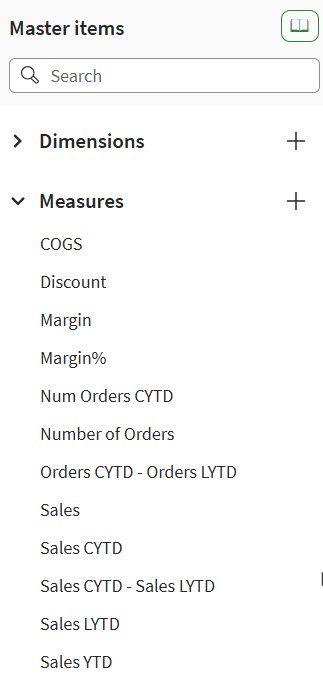
“ABC Sales” is an existing application and already contains a typical set of Measures.
This help topic will walk you through the steps to extract a Data Product and Semantic Model. Note that Extract is currently a preview feature so you will have to activate it to make it available.
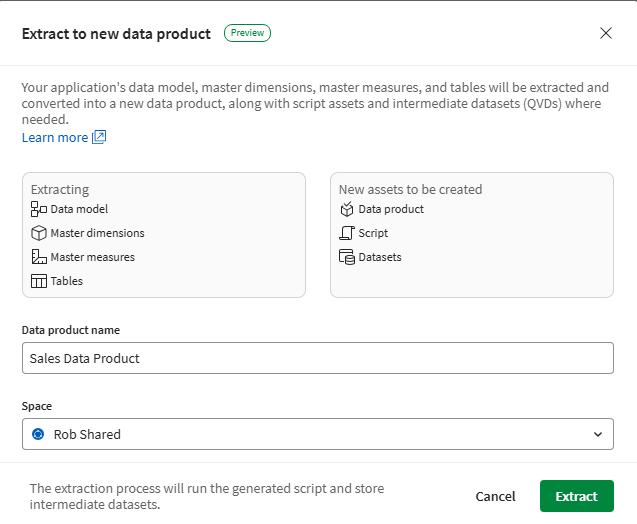
The screenshot below shows what the extract dialog looks like. Note that even though in this post we are only interested in Dimensions and Measures, we have to extract the data tables as well. It’s just how it works. But we don’t have to consume the tables later.
At this point you may want to view the generated Data Product to get a feel for what is there.
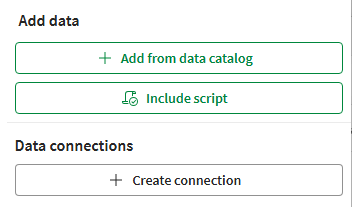
Once we have built the Data Product we can modify our “ABC Sales” load script to consume the Semantic Model. In the script editor use the new “Add from data catalog” button.
If we just accept the defaults we will get inserted script that looks something like this.
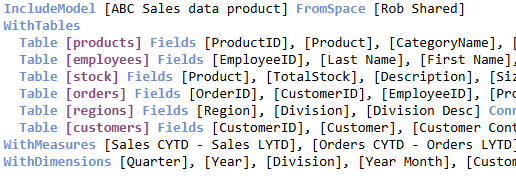
We are loading named fields from Tables and named Dimensions and Measures. Let’s look at the “Add from data catalog” again and select a few options to trim down the script.
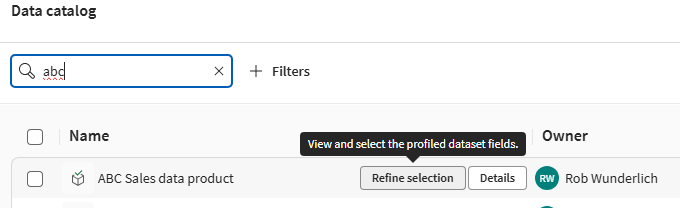
This time we will use the “Refine selection” button to enter advanced mode. (Of course, you can also just edit the generated script by hand.)
Use the checkboxes to limit what is loaded. “Auto-include added items on reload” is a fancy way of saying “load with *” instead of specific names.
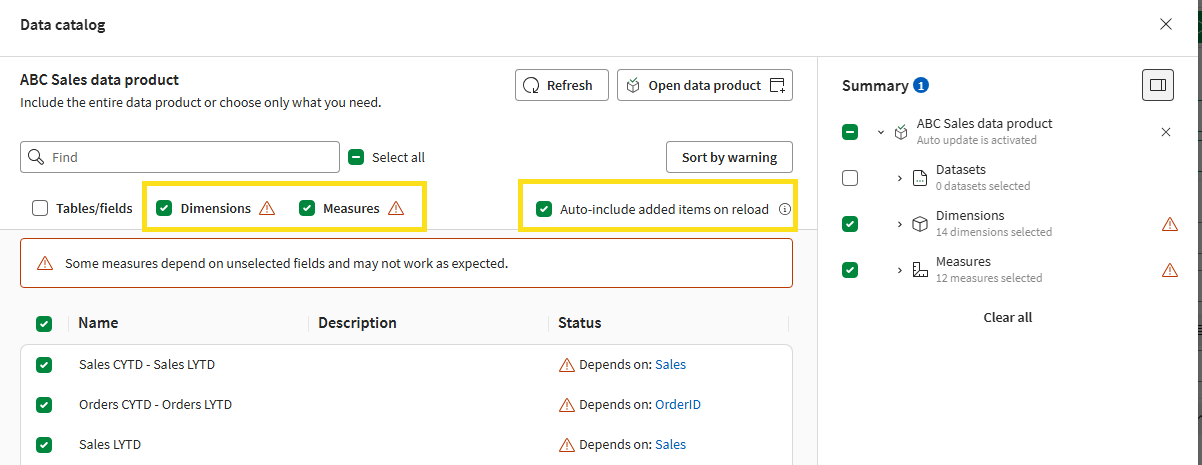
We get some warnings that Measures we are loading depend on fields we are not loading. Not a problem.
Our inserted script now looks like this.

After reloading “ABC Sales” we can see the new Measures and Dimensions in the app asset panel. Items loaded from the model are indicated with a cube icon.
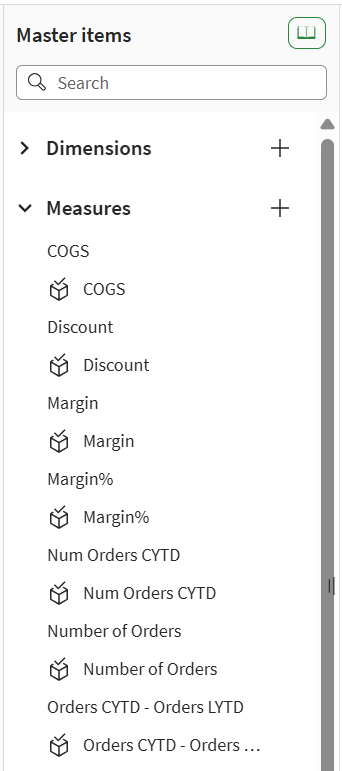
We still have the original App Measures, so we have duplicates. Moving forward we want to use the Semantic Model version and eliminate the app version. Existing charts point to the app measure. We need to modify each chart to point to the model version and eventually delete the app version. This is quite a chore to do manually, editing one chart at a time to change 60 Measure and 61 Dimension chart references.
QSDA Pro to the rescue. QSDA Pro 3.8 recognizes Semantic Model items and flags app items that duplicate them.

When we analyze this app with QSDA Pro, we will get a “Duplicate” flag for each Dimension and Measure and be offered a one-button fix.
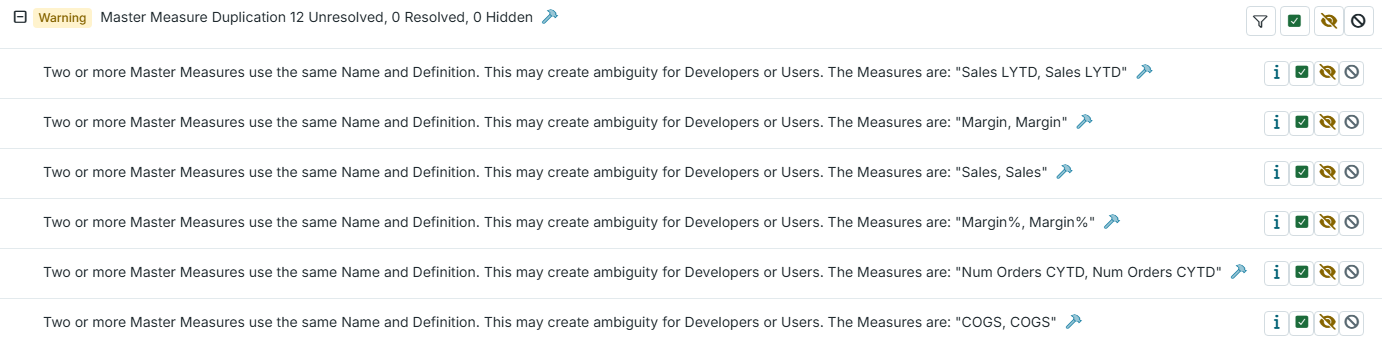
Clicking the hammer icon shows the auto-fix dialog and we can just click through to swap all uses of that Measure and delete the duplicate app Measure.
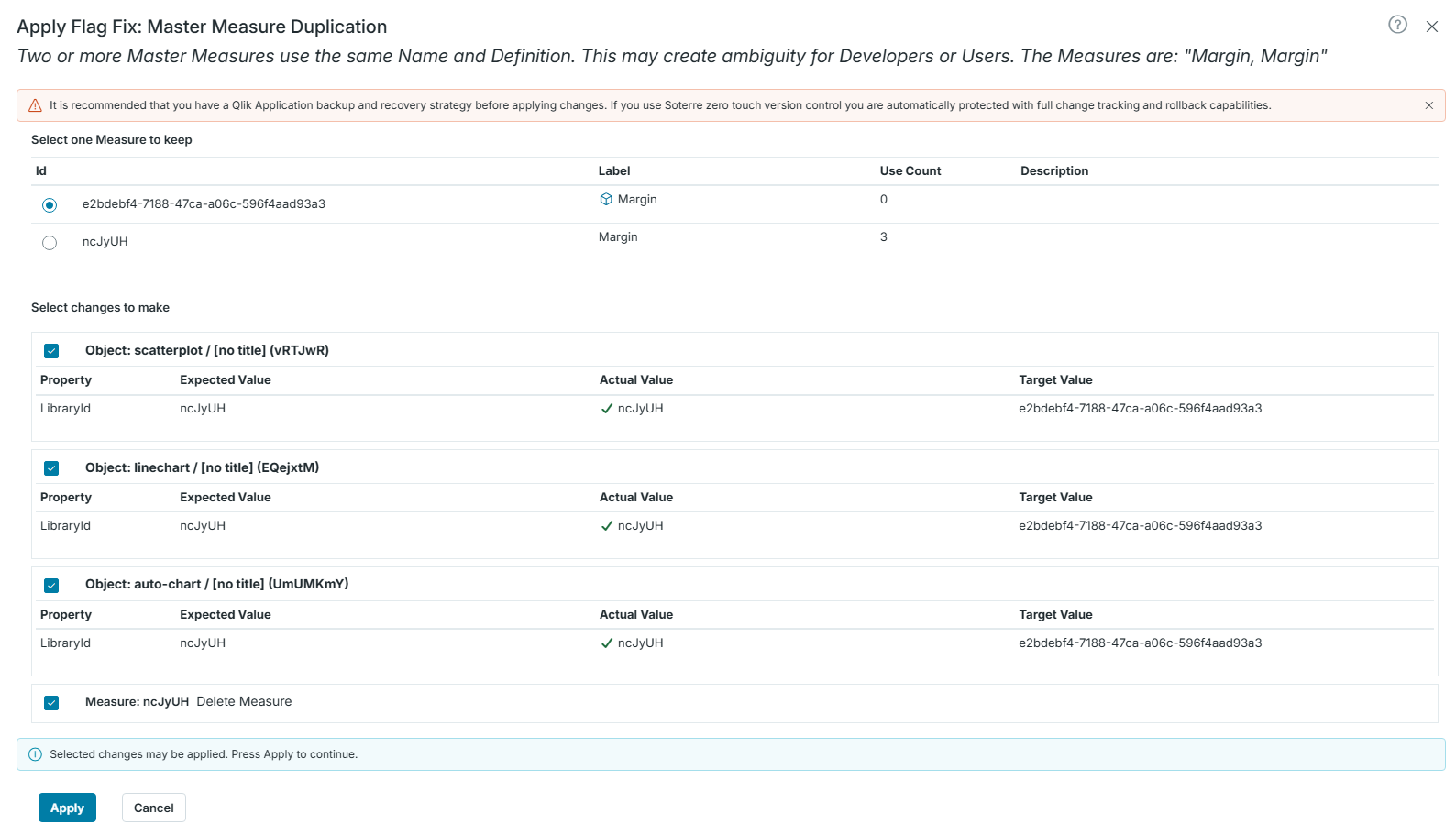
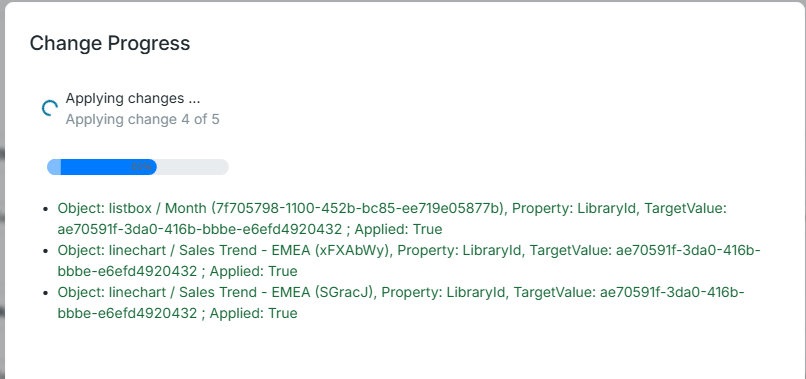
After fixing all Measures and Dimensions, a re-analysis shows that almost all references are to the Model versions and the asset tree is clean. The process took just a couple of minutes.

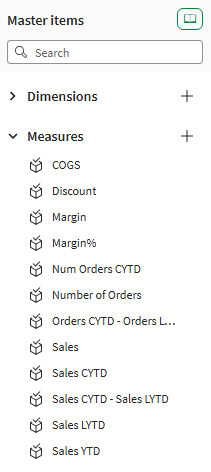
What are those four Dimensions that are still using App Dimensions? Those are drill down dimensions, which are currently unsupported in Semantic Model.
Some interesting things to keep in mind:
- Updates to Semantic Model Measure/Dimension definitions are picked up in the app when the app is reloaded.
- Using the wildcard load “*” will pick up any new items on reload. If you delete an item from the app, it will reappear when the app is reloaded.
- You can get finer control over what is loaded by listing item names instead of “*”.
- You can load from multiple Semantic Models.
- After loading, you can remove the IncludeModel script as a way to “just copy” the items and disconnect from further updates.
- Master item IDs are generated when the item is first created in the app; they are not carried over from the Semantic Model. This has a couple of implications:
- If you delete an in-use master item from the app, on next load the master item will reappear but the referencing chart will still be broken.
- Master items will have different ids between apps, so you still can’t copy a chart from one app to another without manually fixing the master item reference.
I hope this post gave you a head start in experimenting with Semantic Models and thinking about how they can benefit your organization. I’ve shown you how QSDA Pro can streamline that journey. If you want to learn more about QSDA Pro please visit QSDA Pro or reach out to me.
-Rob
