Speed up Script Development with BUFFER
A BUFFER prefix on a LOAD or SQL statement creates and maintains an automatic QVD for that statement. Subsequent executions of the LOAD/SELECT statement will read from the QVD, avoiding another (slower) trip to the database. A read from QVD is generally 5-10 times faster than fetching from database.
TranTab:
BUFFER LOAD
TranID,
Amount,
CustomerID,
etc…
;
SQL SELECT * FROM TRANSACTIONS
;
On first execution, the SELECT will fetch rows from the database and the resulting TranTab will be stored in a specially named QVD on the local machine. On subsequent reloads, TranTab will automatically be loaded from the local QVD.
If you make a change to the TranTab LOAD/SQL statement, QV Reload will detect the change and fetch from the database again and update the local QVD.
During script development it’s not uncommon to perform a reload several times. You can greatly reduce the duration of a script run by adding BUFFER to your statements. Any script changes/adds you make will automatically invalidate that buffer and re-fetch from the database.
Don’t forget to remove the BUFFER keyword before moving to production!
You can read more about BUFFER and some optional parameters in the Qlikview Help.
-Rob
Analyzing Your QVPR
The Qlikview Management Console (QMC) is used to define Reload and Distribution tasks for your Qlikview documents. These definitions are stored in a set of XML files — the Qikview Repository (QVPR) — located in C:ProgramDataQlikTechManagementServiceQVPR on your server.
The QMC provides a good overview of scheduled tasks, but a better analysis is sometimes need to answer questions like:
- What documents are being scheduled on a Monthly schedule? Weekly?
- What documents are using Dynamic Distribution (reduction) and what field controls the distribution?
- Which administrator modified this task and when?
- What documents are being distributed to group Accounting?
- How many documents are being distributed as PDF?
- Do I have logical errors in my QVPR?
- When was my server upgraded?
I’ve produced a “QVPR Analysis” tool that loads the QVPR XML files and makes them available for Qlikview analysis to answer the above questions and more. You can download the QVPR Analysis tool from the “Tools” menu of QlikviewCookbook.com.
The download link above contains some screenshots from the tool (names are scrambled in the images).
You can load directly from the server QVPR folder or an offline local copy obtained from the server. The offline capability makes the tool especially useful for remote consultants who can analyze a customer’s configuration without having QMC access.
This is the same tool provided to Masters Summit for Qlikview attendees last year. If you’ve already received a copy, no need to download again. I plan to continue enhancing the tool and will release further updates on QlikviewCookbook.com.
The analysis is pretty much text and tables which has suited my needs just fine. I’ve used the tool several times to solve some tricky customer problems or get someone out of a jam.
If you have Qlikview Publisher, you’ll get detailed information on Distribution tasks. If you don’t have Publisher, you won’t have distribution information but you’ll still get useful information on reload schedules and QVPR structure.
If you build some new analysis or find the tool useful, drop me a comment.
-Rob
A Color Trick
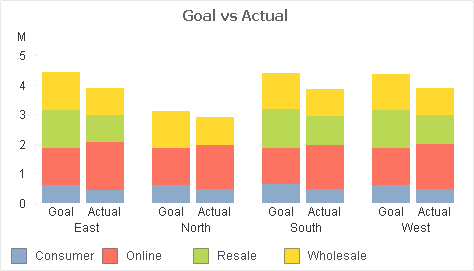
A Customer showed me this stacked bar chart and asked how to “make the Goals a different color”. What he really wanted was to differentiate the Goal stacks from the Actual stacks — but still be able to associate the Channels (Consumer, Online,…).
Channel values are expected to change over time, so any hard-coding of Channel to color would require maintainence. Here’s the Background Color expression I suggested:
if(Type=’Goal’
,argb(96,255,255,255) bitand color(FieldIndex(‘Channel’,Channel))
,color(FieldIndex(‘Channel’,Channel))
)
If that makes perfect sense to you, read no further. Otherwise let me break the expression down.
What we are doing in the expression is setting the Alpha value to “96” when “Type=Goal”. “Type=Actual” will retain the Alpha default of “255”.
Color codes in QV are made up of four numbers — Alpha, Red, Green, Blue — values which we can set in a color dialog or a color function. Alpha indicates the amount of transparency, ranging from 0 (fully transparent) to 255 (fully opaque). Colors functions without an explicit Alpha value like “RGB(0,128,0)” default to Alpha=255.
The function “Color(n)” returns the color code for the “Nth” position in the chart color palette.
FieldIndex(‘Field‘, Value) returns the position of Value in Field (by load order). This will generate a number for each distinct Channel value, regardless of how many Channel values are loaded. We are effectively assigning persistent colors because FieldIndex() is not affected by selections.
1. We use color(FieldIndex(‘Channel’,Channel)) to select color n from the palette.
2. If Type=Goal we use the boolean bitand operator to set the Alpha value for the selected color to “96” without modifying the RGB values. Adjust this 96 value for an effect of your liking.
-Rob
Qlikview Cookbook Online
2. Follow @QvCookbook on twitter.
Use the site’s contact form to leave me any suggestions or requested additions.
Happy learning!
-Rob
Masters Summit for Qlikview — Chicago April 1-3

The next Masters Summit for Qlikview is approaching. Dates are April 1-3 and the location this year is Chicago.
Using Alerts to “Send the Numbers”
The Qlikview Document Alert feature is generally thought of as a way to notify users or administrators of exceptional conditions in the loaded data. But it may also be used for regular emailing of non-exception conditions, like daily sales figures. This can be very useful to inform mobile or travelling user of the status of Key Performance Indicators.
The Document Alert feature is part of basic Qlikview. No additional software or license is required. Please note that that Alerts can only send out text email. They cannot send graphical charts or attachments. If you want that functionality, look to third party addons such as NPrinting.
Alerts are configured in a QVW using the menu item: Tools, Alerts. The Alert Message may contain dynamic (calculated) content in the form of an expression like:
=’Sales YTD: ‘ & money(sum({<Year={$(=year(max(OrderDate)))}>}OrderAmount))
I won’t go deep into the configuration details here, because I’ve provided a downloadable annotated example at this link:
Qlikview Cookbook: Using Alerts To Send Numbers Via Email
The example will produce an email after reload that looks like this:
Alerts are a low cost and simple way to expand the reach and value of your QV applications. Users receiving emails do not require a Qlikview license.
-Rob
Related posts on Alerts:
http://qlikviewnotes.blogspot.com/2010/09/monitoring-reload-schedule.html
http://qlikviewnotes.blogspot.com/2010/12/alert-questions-answers.html
Welcome to the Qlikview Cookbook Online!
In 2008 I published the first edition of the “Qlikview Cookbook”, a downloadable collection of Qlikview examples designed as a reference and training tool for Qlikview developers.
The last update to the Cookbook was in 2011 and it has been downloaded from RobWunderlich.com over 20,000 times.
It’s time for a major update to the Cookbook. For the update I’ve created this website as an expanded delivery vehicle. In using a website, I hope to make it easier for you to discover relevant examples and make it easier for me to maintain.
I’m still open to creating single-file archives of most content — like the old Cookbook — if there is demand for it.
If you have any comments or feedback please use the Contact form.
-Rob Wunderlich
DROP FIELD Does Not Release All Space
During the “Performance Tuning” session at the Barcelona Masters Summit, Oleg Troyansky demonstrated using Document Analyzer to identify unused fields followed by DROP FIELD statements to remove those unused fields from the data model. Roland Vecera offered an interesting discovery. DROP FIELD after a BINARY LOAD does not free the expected amount of memory.
For Example:
Binary dropfieldstest_dm.qvw;
DROP FIELD A,B;
Roland has found that a subsequent LOAD RESIDENT of each affected table is required to fully reduce disk and RAM consumption to the expected level.
A field in a QVW is represented by three storage structures:
1. Symbol table, which stores the unique values of the field.
2. Record pointers, a pointer on each table row to the symbol value.
3. State space, where field selections are tracked.
Based on testing and calculation, my interpretation is that in this scenario (BINARY LOAD/DROP FIELD), the Symbols and State space is released. However, the space occupied by the Record pointers is not released, i.e. the records are not rewritten. This may be a significant amount of space, particularly when a table contains many rows.
For most developers this will be an obscure issue. But for people tuning large applications, this may provide an “aha”moment.
Thanks Roland!
Displaying Keyboard Shortcuts
I note regular requests on QlikCommunity for Qlikview keyboard shortcuts. The usual reply is to post a list of shortcuts.
One of the useful tips I picked up at the recent Masters Summit in London was the key sequence for displaying the list of keyboard shortcuts. In an editor — either script editor or expression editor:
<Ctrl>qsc
Keep the Ctrl key pressed, while sequentially pressing qsc.
-Rob