All posts by Rob Wunderlich

Using Column Visibility

Chart properties provide the capability to suppress the display or calculation of a column. In this post we’ll explore the difference between those two options and look at some use cases.

The Presentation Show/Hide Column feature was introduced in QV10. The Dimension/Expression Conditional is new in QV11.

The Presentation pane of a Straight Table Chart provides an option to show or hide each individual column. The decision to Show/Hide may also be specified as a conditional. If the condition evaluates to true, the column will be displayed.

Hidden columns are calculated and are “present” as data in the chart. The resulting column  is not visible in the rendered chart. Let’s look at a use case for this feature.

Straight Tables expressions may reference other columns in the table as data items.


The Net Sales expression above uses column labels:

=[Gross Sales] – [Sales Tax] – Cost


We can hide the intermediate columns and still use them as data to calculate the “Net Sales” column. This is a useful technique for building up a complex calculation.

The final chart displays only the “Net Sales” column.


The same hidden column technique is available in Bar and Line Charts as well. However, in this case we hide the column by unchecking the Bar (or Line) Display Option  on the Expression pane.


Let’s turn our attention to hiding Dimensions. In the example below, if we want one row for each Order we must include a unique field like OrderId in the Dimensions.


What if we don’t want to display the OrderId, but still want one row per Order? If we remove OrderId from Dimensions the table rolls up to a row for each Description value. That is not what we want.


We can get the desired result by leaving OrderId in the Dimensions and hiding the column on the Presentation pane.


A hidden dimension column participates in defining the rows of a chart. This is a useful feature, although it’s utility is not always obvious.

Qlikview Version 11 introduced  the Dimension/Expression Conditional property. This is enabled by checking Conditional (on the Dimensions or Expressions pane) and supplying an expression to be evaluated. If the expression evaluates to True, the column will be calculated. If False, the column will not be calculated. If it is not calculated, it cannot be referenced by another expression.
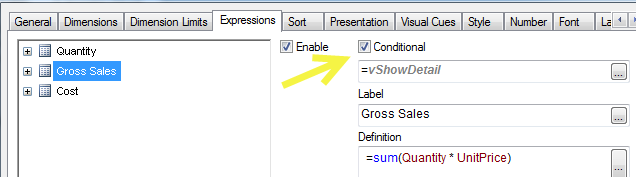
A common use for the Conditional property is to toggle columns on or off in a wide text chart.

The button toggles the variable “vShowDetail” which is tested in the Expression conditional:

Another common use case is the “create your own chart” or “dynamic reporting” where users are allowed to pick Dimensions and Expressions from a list. This property — Dimension/Expression Conditional — is the correct way to implement this. If you instead implement the conditional in the Presentation pane, resources will be wasted calculating values that will not be displayed or referenced.

I find an interesting application for conditional Dimensions in Pivot Tables. I sometimes use buttons or other conditions to enable dimension levels. This presents the same output as Pivot table Expand/Collapse commands but without the clutter of the +/– buttons.

A QVW containing all the examples shown here may be downloaded from Qlikview Cookbook: Tutorial – About Column Visibility.

-Rob

Share

Performance Tip – Using Dual() and Chart Visual Cues

I recently diagnosed a slow Straight Table chart. The chart contained 100K+ rows. One column contained a complex expression that returned a Y/N string flag for the column. Something like:

=if(complex expression, ‘Y’, ‘N’)

They also wanted to set the background color of the cell, green for Y, red for N. So the Expression Background Color property repeated the same complex expression to assign a color:

=if(complex expression, green(), red())

I surmised the expression was being calculated twice for each row. I changed  the main expression to set a Dual().

=if(complex expression, dual(‘Y’,1), dual(‘N’,0))

The chart cell still displays the Y/N text. But now I could use 1 and 0 values on the Visual Cues pane and eliminate the Background Color expression entirely. Much faster!

-Rob

Share

Masters Summit for QlikView Europe: Amsterdam October 2014

After successful events in Las Vegas, London and Barcelona, and the upcoming event in Chicago next April 1 – 3, I am pleased to announce that the next European edition of the Masters Summit for QlikView will be held in Amsterdam, The Netherlands on October 1 – 3, 2014.
If you are a QlikView developer then the practical skills, ready-to-use resources and excellent peer networking offered at this event will make for 3 days that you do not want to miss! More information about the event can be found on the Masters Summit for QlikView website. Information about the venue will be added soon.
If you are based in North America or can’t wait until October, there are still seats available at the Chicago summit April 1-3. Registration is available on the website.
Share

Speed up Script Development with BUFFER

A BUFFER prefix on a LOAD or SQL statement creates and maintains an automatic QVD for that statement. Subsequent executions of the LOAD/SELECT statement will read from the QVD, avoiding another (slower) trip to the database. A read from QVD is generally 5-10 times faster than fetching from database.

TranTab:
BUFFER LOAD 
TranID,
Amount,
CustomerID,
etc…
;
SQL SELECT * FROM TRANSACTIONS
;

On first execution, the SELECT will fetch rows from the database and the resulting TranTab will be stored in a specially named QVD on the local machine. On subsequent reloads, TranTab will automatically be loaded from the local QVD.

If you make a change to the TranTab LOAD/SQL statement, QV Reload will detect the change and fetch from the database again and update the local QVD.

During script development it’s not uncommon to perform a reload several times. You can greatly reduce the duration of a script run by adding BUFFER to your statements. Any script changes/adds you make will automatically invalidate that buffer and re-fetch from the database.

Don’t forget to remove the BUFFER keyword before moving to production!

You can read more about BUFFER and some optional parameters in the Qlikview Help.

-Rob

Share

Analyzing Your QVPR

The Qlikview Management Console (QMC) is used to define Reload and Distribution tasks for your Qlikview documents. These definitions are stored in a set of XML files — the Qikview Repository (QVPR) — located in C:ProgramDataQlikTechManagementServiceQVPR on your server.

The QMC provides a good overview of scheduled tasks, but a better analysis is sometimes need to answer questions like:

  • What documents are being scheduled on a Monthly schedule? Weekly?
  • What documents are using Dynamic Distribution (reduction) and what field controls the distribution?
  • Which administrator modified this task and when?
  • What documents are being distributed to group Accounting?
  • How many documents are being distributed as PDF?
  • Do I have logical errors in my QVPR?
  • When was my server upgraded?

I’ve produced a “QVPR Analysis” tool that loads the QVPR XML files and makes them available for Qlikview analysis to answer the above questions and more. You can download the QVPR Analysis tool  from the “Tools” menu of QlikviewCookbook.com.

The download link above contains some screenshots from the tool (names are scrambled in the images).

You can load directly from the server QVPR folder or an offline local copy obtained from the server. The offline capability makes the tool especially useful for remote consultants who can analyze a customer’s configuration without having QMC access.

This is the same tool provided to Masters Summit for Qlikview attendees last year. If you’ve already received a copy, no need to download again. I plan to continue enhancing the tool and will release further updates on QlikviewCookbook.com.

The analysis is pretty much text and tables which has suited my needs just fine. I’ve used the tool several times to solve some tricky customer problems or get someone out of a jam.

If you have Qlikview Publisher, you’ll get detailed information on Distribution tasks. If you don’t have Publisher, you won’t have distribution information but you’ll still get useful information on reload schedules and QVPR structure.

If you build some new analysis or find the tool useful, drop me a comment.

-Rob

Share

A Color Trick

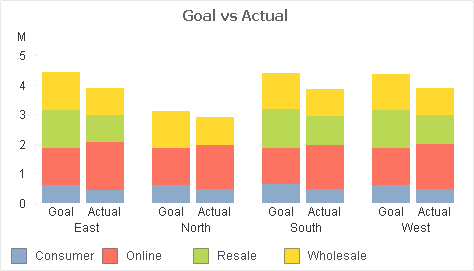
A Customer showed me this stacked bar chart and asked how to “make the Goals a different color”. What he really wanted was to differentiate the Goal stacks from the Actual stacks — but still be able to associate the Channels (Consumer, Online,…).

Channel values are expected to change over time, so any hard-coding of Channel to color would require maintainence. Here’s the Background Color expression I suggested:

if(Type=’Goal’
,argb(96,255,255,255) bitand color(FieldIndex(‘Channel’,Channel))
,color(FieldIndex(‘Channel’,Channel))
) 

If that makes perfect sense to you, read no further. Otherwise let me break the expression down.

What we are doing in the expression is setting the Alpha value to “96” when “Type=Goal”. “Type=Actual” will retain the Alpha default of “255”.

Color codes in QV are made up of four numbers — Alpha, Red, Green, Blue — values which we can set in a color dialog or a color function. Alpha indicates the amount of transparency, ranging from 0 (fully transparent) to 255 (fully opaque). Colors functions without an explicit Alpha value like “RGB(0,128,0)” default to Alpha=255.

The function “Color(n)” returns the color code for the “Nth” position in the chart color palette.

FieldIndex(‘Field‘, Value) returns the position of  Value in Field (by load order).  This will generate a number for each distinct Channel value, regardless of how many Channel values are loaded. We are effectively assigning persistent colors because FieldIndex() is not affected by selections.

1. We use color(FieldIndex(‘Channel’,Channel)) to select color n from the palette.

2. If  Type=Goal  we use the boolean bitand operator to set the Alpha value for the selected color to “96” without modifying the RGB values. Adjust this 96 value for an effect of your liking.

-Rob

Share

Qlikview Cookbook Online

My “Qlikview Cookbook” is now available online at QlikviewCookbook.com where you can browse and download high-quality examples and tutorials.

In 2008 I published the first edition of the “Qlikview Cookbook”, a downloadable collection of Qlikview examples designed as a reference and training tool for Qlikview developers. The last update to the Cookbook was in 2011 and  it has been downloaded from RobWunderlich.com over 20,000 times.
You can follow updates to the Cookbook in a couple of ways:
1. Sign up for the Cookbook Newsletter on the Qlikview Cookbook home page. You’ll receive a monthly email of “What’s New” plus bonus material. 

2. Follow @QvCookbook on twitter.

Use the site’s contact form to leave me any suggestions or requested additions. 

Happy learning!

-Rob
Note: The QlikviewCookbok site is not related to the similarly named and excellent book “Qlikview Cookbook for Developers” by Stephen Redmond. 
 
Share

Masters Summit for Qlikview — Chicago April 1-3

Masters Summit for Qlikview

The next  Masters Summit for Qlikview is approaching. Dates are April 1-3 and the location this year is Chicago.

I’ll be joining some of the leading QlikCommunity contributors and authors live for 3 days  to discuss advanced techniques in building complex solutions with QlikView.
Sessions are targeted at intermediate to advanced Qlikview developers and will cover advanced tools and techniques across a wide spectrum of Qlikview development skills — Scripting, Modeling, Visualization, Expressions, Server, Performance. See the list of sessions here.
In 2013 Masters Summits were held in Las Vegas, London and Barcelona. Response from the attendees was overwhelmingly positive. Read their comments here.
For complete program details and registration information, see the Summit Website. I hope to see you there!
Share

Using Alerts to “Send the Numbers”

The Qlikview Document Alert feature is generally thought of as a way to notify users or administrators of exceptional conditions in the loaded data. But it may also be used for regular emailing of non-exception conditions, like daily sales figures. This can be very useful to inform mobile or travelling user of the status of Key Performance Indicators.

The Document Alert feature is part of basic Qlikview. No additional software or license is required. Please note that that Alerts can only send out text email. They cannot send graphical charts or attachments. If you want that  functionality, look to third party addons such as NPrinting.

Alerts are configured in a QVW using the menu item: Tools, Alerts. The Alert Message may contain dynamic (calculated) content in the form of an expression like:

=’Sales YTD:  ‘ & money(sum({<Year={$(=year(max(OrderDate)))}>}OrderAmount))

I won’t go deep into the configuration details here, because I’ve provided a downloadable annotated example at this link:
Qlikview Cookbook: Using Alerts To Send Numbers Via Email 

The example will produce an email after reload that looks like this:

Alerts are a low cost and simple way to expand the reach and value of your QV applications. Users receiving emails do not require a Qlikview license.

-Rob

Related posts on Alerts:
http://qlikviewnotes.blogspot.com/2010/09/monitoring-reload-schedule.html
http://qlikviewnotes.blogspot.com/2010/12/alert-questions-answers.html

Share

Welcome to the Qlikview Cookbook Online!

In 2008 I published the first edition of the “Qlikview Cookbook”, a downloadable collection of Qlikview examples designed as a reference and training tool for Qlikview developers.

The last update to the Cookbook was in 2011 and  it has been downloaded from RobWunderlich.com over 20,000 times.

It’s time for a major update to the Cookbook. For the update I’ve created this website as an expanded delivery vehicle. In using a website, I hope to make it easier for you to discover relevant examples and make it easier for me to maintain.

I’m still open to creating single-file archives of most content — like the old Cookbook — if there is demand for it.

If you have any comments or feedback please use the Contact form.

-Rob Wunderlich

Share