All posts by Rob Wunderlich

Preceding Load is Elegant

I love the preceding load feature of Qlikview scripting. It can make complex things simple.

Consider for example, having to parse an arbitrary number of key:value pairs from input like:

Name:Shoes, Size:L, Color:Blue Suede, Stock: 200
Name:Socks, Model:Mens Casual, Stock:0, Color:Black
Name:Pants, Error: No attributes found

We want each key to become a Field populated with it’s matching value. Here’s the entire script to do just that.  A preceding load is a series of chained LOADs that execute from the bottom up — so read the script from the bottom.

And now we can build a chart like this.

Simple. Elegant.

I’ll be showing some other cool examples of Preceding Load in my “Advanced Scripting” session at the Masters Summit for Qlikview Oct 1.

-Rob

Script suitable for copy/paste

data:
// 4. Generic Load to transpose Key to Field
Generic LOAD RecId, Key, Value
;
// 3. Separate key & value
LOAD
RecId,
subfield(Pair,':',1) as Key,
subfield(Pair,':',2) as Value
;
// 2. Break out each key:value pair
LOAD
RecId,
subfield(Input,',') as Pair
;
// 1. Load the raw Input
LOAD *, RecNo() as RecId INLINE [
Input
Name:Shoes, Size:L, Color:Blue Suede, Stock: 200
Name:Socks, Model:Mens Casual, Stock:0, Color:Black
Name:Pants, Error: No attributes found
] (delimiter is '|')
;

Share

Expressionless and Dimensionless Charts

We usually think of charts as having both Dimensions and Expressions. But that’s not always the case. Sometimes it’s useful to have only one or the other.

A Straight Table with Dimensions and no Expressions is very similar to a Table Box. Unlike a Table Box, you can add Expressions later if needed and you also get improved styling options.


The trick to getting rows to display when there are no Expressions is to uncheck “Suppress Zero-Values” on the chart properties Presentation pane.


A Dimensions only Pivot Table is a useful way to display a hierarchy. This can look very nice with the Indent style.


Charts may also contain Expressions only — no Dimensions. Here’s a Straight Table with two expressions and no Dimensions.


We get a single row table — the sum of all data — along with a redundant Total line. By turning off the Totals and doing some styling, we can build a nice KPI display in a single table without needing to line up multiple text objects.


We get the full power of Straight table layout and styling, number formats, visual cues etc. I flipped the columns to the horizontal by checking “Horizontal” on the Presentation pane.

Bar Charts may also be created without Dimensions. Each Expression is plotted as a separate bar, in either the grouped or stacked style.


When an Expression only Bar Chart is stacked and oriented horizontal, it can be an  interesting alternative to the Linear Gauge chart.

Free your mind from the idea that a chart always has Dimensions and Expressions and have some fun.
-Rob
Share

Becoming a Scripting Ninja

As a QV Consultant, I split my time between delivering training and QV Practice.  I like both sides of the business, but I particularly enjoy contributing to the excitement of using QV that results from training.

During a lunch break today, I mentioned the Masters Summit for Qlikview to one of my students. He asked “What does it take to become a Master?”. Of course I answered “Attend the summit! “.  But it reminded me of a list I present when delivering  Qlikview Developer (Scripting & Data Modeling) training.

Most of us experienced instructors augment the standard curriculum with our own real-world experiences. When teaching scripting, in addition to surveying the range of scripting statements and modeling solutions, I emphasize three specific scripting features as “Ninja skills” — script features whose mastery makes you deadly effective. My “Scripting Ninja” list is:

1. MAPPING LOAD. Understanding how to create a Mapping table. How to use that table in all it’s forms — ApplyMap(), MAP USING, RENAME USING and the other metadata USINGs — TAG and COMMENT.

2. IntervalMatch — has many uses  including Slowly Changing dimensions, Currency Rates, Dimension Bucketing to name a few.

3. Preceding Load — can be used to create powerful parsing scripts and simplify the maintenance and accuracy of script. Here’s a primer on Preceding Load.

Those are the three special QV scripting features that stand out for me as exceptionally powerful and well worth mastering. Are there others you would add to the Ninja list?

-Rob


Share

Major Update to Document Analyzer

I’ve been publishing the free Qlikview “Document Analyzer” tool since 2009. I’ve just released a major update to DocAnalyzer. You can download Document Analyzer V2 from the Qlikview Cookbook website

DocAnalyzer is a tool to help tune the performance — response time and resource requirements — of a Qlikview QVW. DocAnalyzer can identify unused Fields and pinpoint slow charts.

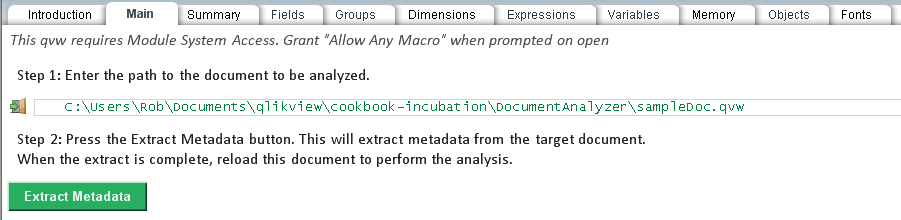
How do you use DocAnalyzer? After identifying the QVW to be analyzed. press the “Extract Metadata” button to begin the analysis process. When the extract is complete, you’ll receive a popup message. The extract can take anywhere from a few seconds to several minutes for documents with many thousands of objects.


When the extract is complete, you must run a Reload of Document Analyzer. A button is provided for this or you can do Ctrl-R.

What can you discover in the analysis? Here are a few items.

– The Fields sheet will give you an overview of what fields are used and unused and where they are used — Dimensions, Expressions, Variables, etc.

A Listbox is provided with suggested DROP FIELD script statements for the unused fields.

Select $date and $timestamp in “Field Tag” listbox. Examine the “Symbols Size” column in the Field References chart. Dates and Timestamps can be stored in 8 bytes, but frequently get converted to longer string representations during loading. The impact is only significant if there are a large amount of Distinct Values.

– The Memory sheet provides an overview and detail of RAM requirements and estimates how much memory could be saved by dropping unused fields.


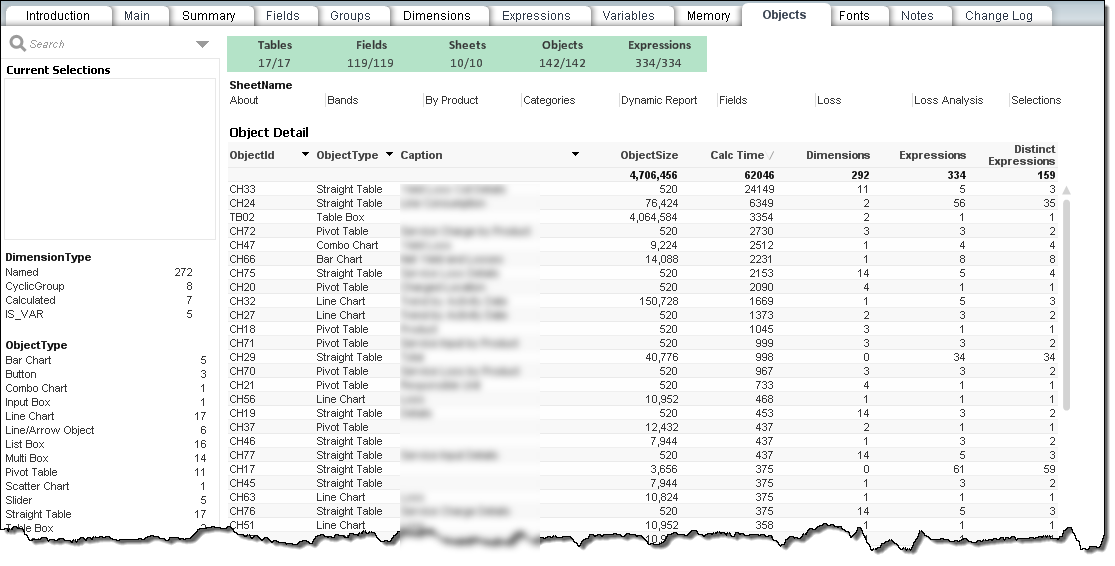
– The Object sheet lists all Objects along with their Calc Time and RAM Size.


Selecting a single object will enable a “Goto Object” that open the target document and Activate that object so you can examine it’s properties.

There are many other areas you can examine such as the use and performance of Calculated Dimensions, Groups, Expression contents and what properties use those expressions.

Document Analyzer is one of the Tools that Oleg Troyansky will present in his “Performance Tuning” session at the upcoming Masters Summit for Qlikview in Amsterdam Oct 1. I hope you can join us there for more performance tips and a chance to learn advanced Qlikview development skills.

-Rob

Share

The Third Format

In QV number formats we can use specify different patterns for positive and negative values. The two patterns are separated by a semicolon like this:  positive;negative

#,##0;-#,##0

Did you know a third pattern can be specified? It’s used for zero values.

#,##0;-#,##0;–

Using the above format zero displays as a double hyphen “–“.  Entering nothing after the second semicolon will result in zero being displayed as a blank.

The Qlikview Reference Guide appears to make no mention of the second and third formats. However, the formats look like Excel custom formats. Using that documentation, you’ll see that text may be used to create interesting formats like:

+#,##0.00% Increase;-#,##0.00% Decrease;No Change

Which when combined with Visual Cues can produce chart output like:

-Rob

Share

Using Column Visibility

Chart properties provide the capability to suppress the display or calculation of a column. In this post we’ll explore the difference between those two options and look at some use cases.

The Presentation Show/Hide Column feature was introduced in QV10. The Dimension/Expression Conditional is new in QV11.

The Presentation pane of a Straight Table Chart provides an option to show or hide each individual column. The decision to Show/Hide may also be specified as a conditional. If the condition evaluates to true, the column will be displayed.

Hidden columns are calculated and are “present” as data in the chart. The resulting column  is not visible in the rendered chart. Let’s look at a use case for this feature.

Straight Tables expressions may reference other columns in the table as data items.


The Net Sales expression above uses column labels:

=[Gross Sales] – [Sales Tax] – Cost


We can hide the intermediate columns and still use them as data to calculate the “Net Sales” column. This is a useful technique for building up a complex calculation.

The final chart displays only the “Net Sales” column.


The same hidden column technique is available in Bar and Line Charts as well. However, in this case we hide the column by unchecking the Bar (or Line) Display Option  on the Expression pane.


Let’s turn our attention to hiding Dimensions. In the example below, if we want one row for each Order we must include a unique field like OrderId in the Dimensions.


What if we don’t want to display the OrderId, but still want one row per Order? If we remove OrderId from Dimensions the table rolls up to a row for each Description value. That is not what we want.


We can get the desired result by leaving OrderId in the Dimensions and hiding the column on the Presentation pane.


A hidden dimension column participates in defining the rows of a chart. This is a useful feature, although it’s utility is not always obvious.

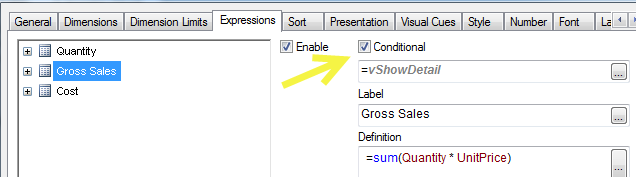
Qlikview Version 11 introduced  the Dimension/Expression Conditional property. This is enabled by checking Conditional (on the Dimensions or Expressions pane) and supplying an expression to be evaluated. If the expression evaluates to True, the column will be calculated. If False, the column will not be calculated. If it is not calculated, it cannot be referenced by another expression.

A common use for the Conditional property is to toggle columns on or off in a wide text chart.

The button toggles the variable “vShowDetail” which is tested in the Expression conditional:

Another common use case is the “create your own chart” or “dynamic reporting” where users are allowed to pick Dimensions and Expressions from a list. This property — Dimension/Expression Conditional — is the correct way to implement this. If you instead implement the conditional in the Presentation pane, resources will be wasted calculating values that will not be displayed or referenced.

I find an interesting application for conditional Dimensions in Pivot Tables. I sometimes use buttons or other conditions to enable dimension levels. This presents the same output as Pivot table Expand/Collapse commands but without the clutter of the +/ buttons.

A QVW containing all the examples shown here may be downloaded from Qlikview Cookbook: Tutorial – About Column Visibility.

-Rob

Share

Performance Tip – Using Dual() and Chart Visual Cues

I recently diagnosed a slow Straight Table chart. The chart contained 100K+ rows. One column contained a complex expression that returned a Y/N string flag for the column. Something like:

=if(complex expression, ‘Y’, ‘N’)

They also wanted to set the background color of the cell, green for Y, red for N. So the Expression Background Color property repeated the same complex expression to assign a color:

=if(complex expression, green(), red())

I surmised the expression was being calculated twice for each row. I changed  the main expression to set a Dual().

=if(complex expression, dual(‘Y’,1), dual(‘N’,0))

The chart cell still displays the Y/N text. But now I could use 1 and 0 values on the Visual Cues pane and eliminate the Background Color expression entirely. Much faster!

-Rob

Share

Masters Summit for QlikView Europe: Amsterdam October 2014

After successful events in Las VegasLondon and Barcelona, and the upcoming event in Chicago next April 1 – 3, I am pleased to announce that the next European edition of the Masters Summit for QlikView will be held in Amsterdam, The Netherlands on October 1 – 3, 2014.
If you are a QlikView developer then the practical skills, ready-to-use resources and excellent peer networking offered at this event will make for 3 days that you do not want to miss! More information about the event can be found on the Masters Summit for QlikView website. Information about the venue will be added soon.
If you are based in North America or can’t wait until October, there are still seats available at the Chicago summit April 1-3. Registration is available on the website.
Share