All posts by Rob Wunderlich

Masters Summit for Qlikview

I’m excited to be a featured presenter at the upcoming Masters Summit for Qlikview in Las Vegas, April 16-18. The event promises three days packed with hands-on  presentations covering advanced Qlikview techniques that will  accelerate and streamline development and management of your Qlikview deployment.

I’m pleased to be working with such a top-notch group of presenters. I’ll be presenting Advanced Scripting and will be showing some tricks I’ve never shared in public before. Bill Lay is an engaging presenter who never fails to teach me something new and useful every time I hear him speak. Barry Harmsen has again demonstrated his mastery of QV with the recent publication of “Qlikview 11 For Developers” (Packt publishing). Oleg Troyansky is legendary in the Qlikview Community and one of the earliest adopters and promoters of Qlikview in the US.

I hope you can join us April 16. More information and registration can be found at the Summit website. 

-Rob

Share

Filling Default Values Using Mapping

It’s common to have a Qlikview table that contains null values for some fields. The nulls may be a result of source data nulls, QV Joins or Concatenates. Regardless of how the nulls were created, in this post I’ll demonstrate an easy to maintain global technique for replacing all nulls in a table with default values.

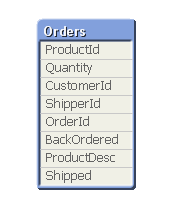
Consider this sample table:


The table has been created through a mix of Join and Concatenate. It’s data looks like this:


Note the null ProductDesc  because there is no match on ProductId. The BackOrdered field is null for orders that didn’t come in from the BackOrder table. Shipped is null for orders that had no match in a Join with the Shipments table.

What if we want to have meaningful values for the nulls, perhaps to make them selectable? We may have been able to assign defaults as we built the table, but that can be a hassle. Let’s do it the easy way after the table is built.

First we build Mapping tables for the output values we want to assign. For BackOrdered and Shipped, null should be ‘N’. For null ProductDesc, we want to assign the string ‘MISSING!’.

Recall that a Mapping table has two columns — column1 the value to be mapped (null in this case), column2 the value to be assigned. A value that does not appear in the Mapping table remains unchanged. Let’s create two Mapping tables for the two output values.

YNMap:
MAPPING LOAD 
null(), ‘N’ AutoGenerate 1;


MissingMap:
MAPPING LOAD 
null(), ‘MISSING!’ AutoGenerate 1;

Next we connect fields to the mapping tables with MAP USING statements. The statement identifies the field and Mapping table that should be used.

MAP Shipped USING YNMap;
MAP BackOrdered USING YNMap;
MAP ProductDesc USING MissingMap;

The mapping will be applied when the field value is created. So how do we apply the map to an already existing table? We make a copy of the table. That will cause the latest mapping to be applied

Orders2:
NoConcatenate   // This is important! We want a new table!
LOAD * RESIDENT Orders;
DROP TABLE Orders;  // Drop the original table

And now the  data looks like this (bold added).


This is a simple method to make your data as robust as possible for the user experience in the front end.

-Rob

Share

My Script Wishlist for QV.next

Here are a few items I hope show up as script and development features in Qlikview.next.

1. Script scoped variables. I use a lot of variables in script and it’s a hassle to have to delete them at the end of the script before they get promoted to the UI. I’d like to have a variable type that gets automatically dropped at script end. Perhaps by naming pattern like:
  SET ScriptOnlyVariablePrefix=’_’;

2. Function blocks in script. Not variables with parameters, but blocks that can execute multiple script statements and return a single result.

3. Allow the CALL statement (and other control statements) to span multiple lines. 

4. Regular Expression test and match functions. 

– A few more that are not script, but development related:

5. A chart function to read Field and Table Comments. 

6. Menu command to open the script logfile. 

7. Support cases remain open until a bug fix is delivered — not closed when a bug id is assigned. 

-Rob


Share

My Layout Wish List for QV.next

Here are a few items I hope show up as layout features in Qlikview.next.

1. Grouped objects. Yes, we are still waiting for this one. While Containers are great, they do not satisfy the requirement.

2. Automatic zooming and scaling in the Ajax client. I’d like to see content scale to fit the horizontal page, as a typical html page does. This should include left/right object alignment attributes to keep things organized.

3. Ability to specify object sizes with percentages as well as pixels. For example, I’d like to specify that a chart should size to 70% of the screen or Container.

4. Flexible markup in Text Objects that would allow me to mix different font sizes and colors, as well as hyperlinks. Ideally this would be something simple like html.

5. Enhanced chart pop-ups to include mixed fonts (see #4) and sub-charts (micro charts).

6. Help!
a. Help Text Property at the Sheet level.
b. Flexible markup (see #4) in Help Text.
c. Allow the Help “?” icon to be positioned in the chart, eliminating the requirement to show caption.
d. A new Action “Show All Help” which would pop-up all the object help on the active sheet.

-Rob

Share

Establishing a Sort Order

Sometimes a desired sort order does not follow a natural alpha or numeric sort pattern. For example, there may be project phase names that should appear in charts in this specific order:

Design
Review
Budget
Implementation

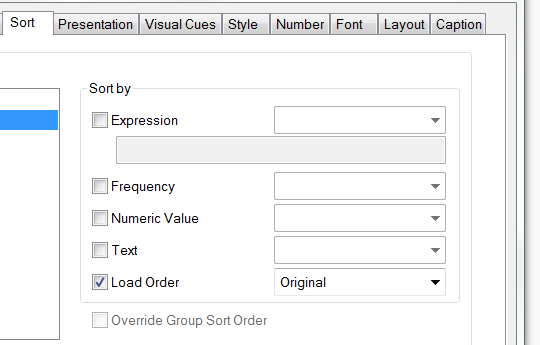
One of the Sortby  options available in chart properties is “Load Order”.

A specific Load Order for a field can be created by loading a dummy table with the desired order prior to loading the source data. The dummy table “PhaseSort” may be dropped after loading the source data.

// Load a dummy table to establish 
// sort order for field “Phase”.
PhaseSort:
LOAD * INLINE [
Phase
Design
Review
Budget
Implementation
]
;

// Load the source data
Fact:
LOAD 
ProjectId, Phase, Amount
FROM projects.qvd (qvd)
;

// Dummy table no longer needed
DROP TABLE PhaseSort;

-Rob

Share

The Nature of Dual() Flags

You’ve probably heard of the QV “Dual” function and may have seen some interesting uses for dual(). One of my workhorse applications of Dual is flag fields.

In script, we might create flag fields such as:
  if(Not IsNull(ShipDate), 1, 0) as Shipped

This creates the new field “Shipped” that contains 1 (if the corresponding ShipDate has a value) or 0. This is a useful flag for chart expressions like “if(Shipped, …” orsum(Shipped)” orOrderTotal * Shipped “.

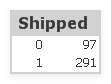
If we display the flag in a Listbox or Table, it looks ugly. 0’s and 1’s are appreciated only by programmers.


If instead of 0/1 we assign string values like  “Yes”, “No” the display would look better.


But if we use string values, we lose the ability to use numeric expressions. Instead we would need to use slower string expressions like “if(Shipped=’Yes’,…)” and “count(Shipped).”.

Wouldn’t it be great if we could have the best of both worlds? Strings for display and numbers for convenience and performance? This is where dual is useful.

A quick review of the function from Help:
  dual( s , x )
  Forced association of an arbitrary string representation s with a given number representation x.

What this means is that a field value will have both string and numeric values — a dual nature. Which type is used  — string or number — is dependent on the context where the field is referenced.

Let’s define that Shipped flag using dual:

if(Not IsNull(ShipDate), dual(‘Yes’, 1), dual(‘No’, 0) ) as Shipped

We are still assigning one of two choices to Shipped. The assigned values have a dual nature. Qlikview will use either the string or numeric value automatically based on how the field is referenced.

In a display context like a Listbox or dimension, the string value (“Yes/No”) will be used.
In a numeric expression like “sum(Shipped), the numeric value (0/1) will be used.

What about the “(If(…” test? QV will choose a numeric or string comparison based on the presence of quotes. All three of these examples are valid:

If(Shipped, …
If(Shipped=1, …
If(Shipped=’Yes’, …

In practice, I may create many 0/1 flags in a single script. Rather than clutter the syntax with a lot of repetitive dual(), I use a mapping approach.

First I define my map:

YesNoMap:
MAPPING LOAD num, dual(str, num) INLINE [
num, str
0, No
1, Yes
];

Then I identify the fields I want to assign to dual() with MAP USING statements:

MAP Shipped USING YesNoMap;
MAP Audited USING YesNoMap;

Later in the script I create the flag fields using the simple 0/1 assignments:
if(Not IsNull(ShipDate), 1, 0) as Shipped

MAP USING will translate the 0/1 into the desired dual. This approach also makes it easier to globally redefine my display values from “Yes/No” to “Y/N” or “Si/No”.

-Rob

Share

First Look at Governance Dashboard

The Qlikview Governance Dashboard (“QGD”) is now available for download in QlikMarket. It’s marked as “beta” but it looks to be pretty close to complete.

QGD is a Qlikview app that scans files from your Qlikview deployment — QVW, QVD, log files — and builds a dashboard of metrics that can be utilized to understand and manage your deployment. There is a  FAQ available here.

QGD replaces the MetaScanner sample that was available on the Community. QGD is a QT supported product, whereas MetaScanner was provided as a sample app.

QGD uses a Connector, an Expressor dataflow, and a hidden script to do the scanning. The dataflow cannot be modified by the customer. Not a problem as this is now supported by QT. The scanner tolerates older (pre V10) qvws without error.

The data model produced by QGD is pretty comprehensive, and in my limited review, accurate and useful. You can use the dashboard objects as delivered or binary load the model to create your own analysis.

The scanner reports on some attributes that were previously difficult to scan, such as the document “Generate Logfile” property. The dashboard presents some interesting displays. I like the idea of counting expression variations against a label. For example, we can see that something labeled “Proceeds” is associated with twelve different definitions  Those variations may indicate a business difference or perhaps just different set modifiers — you have to look to see — but it can point to something worth reviewing.

For complete lineage results, you must run the scanner on the same machine where the reloads took place, using the same path mapping.

There are some improvements I’d like to see. The current notion of a database “source” is whatever appears after the FROM keyword in the SELECT. That works for a simple select but yields less useful and sometimes incorrect results for more complex SQL. In my QVD Dictionary app, I parse the DB table  names out of the SQL statements. I’m sure a connector could do this much easier by leveraging a SQL parser.

I would also like to see the one QVW Field to many QVW Table relationship. Currently, a Field is reported as being in only one table.  The complete association would allow us to analyze table associations, synthetic keys and even draw table models of a QVW.

All in all, a great move forward. I’m happy this is now available and will be testing it on different customer deployments.

Share

Animated Charts and Gapminder

My colleague Barry Harmsen on the QlikFix blog recently published some cool QV animations. Barry is the kid who’s math homework I copied because I was too busy playing volleyball.

Barry’s post referenced the work of Hans Rosling and gapminder.org. Hans Rosling is one of my data visualization heroes and I use Mr Rosling’s work as demonstration material when I teach Qlikview, particularly his widely viewed “Health and Wealth of Nations” time series animation.

Inevitably, after viewing “Health and Wealth of Nations” my students would ask “Can Qlikview do that?”. My answer used to be “I’m not sure”, but some time back I set out to recreate the same animation in QV. So the answer is now “yes”, but ironically, I haven’t had a student ask since I developed it. I have to wear an anticipatory grin and prompt the students with “Do you think Qlikvew can do that?”.

For the record, here’s the QV version of Gapminder’s “Health and Wealth of Nations”.  You can download a working QVW that includes the animation here. Click the green play button and watch it march through the years from 1800 to 2009.

Qlikview chart animations are enabled on the Dimensions pane, Animate button. Animations do not play in the Ajax client.
This animation has a big wow factor, and it’s a hit in class. But I’ve yet to see a useful animation implemented with customer data. If you have done one, I’d love to hear about it.
I find the the work of Gapminder to be not only technically inspiring, but a powerful demonstration of how data visualization can foment understanding of important issues.
Share

Identifying Unused Fields With DocumentAnalyzer

An first step to improving  the performance of a QV Document is to remove unused fields from the data model. A tool that can assist with this process is DocumentAnalyzer, freely available for download here.

I first blogged about DocAnalyzer in 2009. It’s since undergone a number of improvements and there is a whole new audience of QV Developers out there. I thought it was worth revisiting.

DocumentAnalyzer is a QVW that analyzes another QVW and identifies Fields that are unused by the UI. That is, Fields that are not used in expressions, dimensions or keys. These are fields that can probably be safely removed without affecting the user experience. I say “probably”, because DocAnalyzer is a guide; you must apply your own common sense and knowledge of the application before following it’s recommendations.

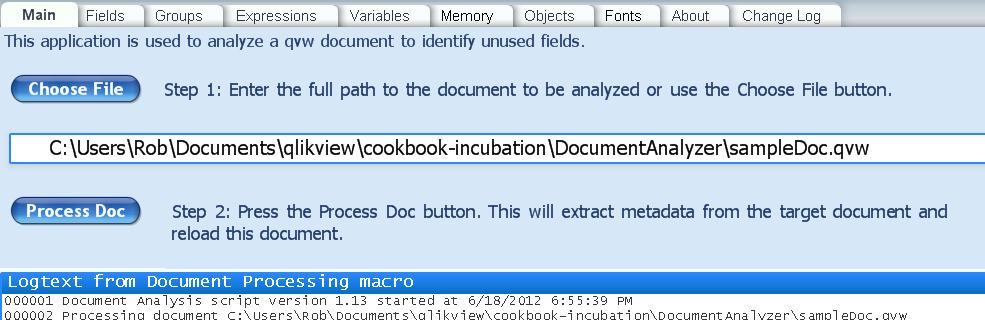
DocAnalyzer uses a macro that requires system access. Allow system access when prompted. The main sheet provides an input field for specifying the document (target document) to be analyzed:


In the input field, enter the path to the target document. You may alternatively use the “Choose File” button to open a file chooser dialog. The usability of the chooser dialog is dependent on the windows version.

After entering a target name, press the “Process Doc” button. DocAnalyzer will open the target document and extract the info required for analysis. When the analysis is complete, you will see the popup


Press OK to continue and review the results.


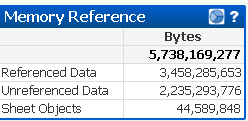
A good place to start is the “Memory” sheet. The Memory Reference chart will show how many bytes are represented by unused (Unreferenced Data)  fields, and therefore how much memory could be saved by removing those fields. In this example 2.2GB of data is unused!


Next go to the “Fields” sheet. Select “N” in the FieldIsUsed listbox. Sort the Bytes in the “Field References” chart. This will identify the amount of memory occupied by each unused field.


It makes sense to consider removing the “OrderTime” field. It uses about 90MB. The other fields are small. You may want to remove them for neatness but the impact on performance will be insignificant.

A field may be required as part of the script processing or it may have been loaded by a “LOAD *”. A simple way to remove it from the model is to add a
DROP FIELD OrderTime;
at the end of the script.

In addition to identifying unused Fields, DocAnalyzer has picked up a couple of useful features for understanding target documents.

– The Groups sheet show the composition of Groups and their use.

– On the Object sheet, select to a single objectId. Clicking the “Goto Object” button will take you to that object in the target document.

– A customer requested the ability to analyze consistent font usage in his application. While not really the mission of DocAnalyzer, I had the framework there I so added the Font sheet.

If you have problems or questions on DocAnalyzer, please follow the reporting instructions on the About sheet. If you are reporting a possible bug, please include the contents of the Logtext on the Main sheet in your report.

-Rob

Share

Script Diagnostics using Qlikview Components

Qlikview Components (Qvc)  is a script library that simplifies and improves the quality of Qlikview scripting. You can read an introduction to Qvc here.


Today I’ll talk about a couple of debugging and diagnostic routines in Qvc. Qvc has a Log routine that records messages in a Log table. The Log may optionally be written to an external file. 


A call to the log routine is simply:
  CALL Qvc.Log(‘message’);


Log adds ‘message’  to the Table Qvc.LogTable as  fieldname Qvc.LogMessage. A sequence number and timestamp are added to the message. The Qvc.LogMessage field may be displayed in a chart or listbox. 


Options such as writing to an external file are controlled by configuration variables. See the Qvc.Log doc for a complete list of options. 


The Log routine is used by several other Qvc routines. Let’s look at one example.


We sometimes want to know in script how a table’s row count is affected by an operation such as Join. The Qvc.TableStats routine displays a list of tablenames, row and field counts. The basic call is:
  CALL Qvc.TableStats;


The output is written using Qvc.Log. If the optional parameter is provided, the message parameter will be included in the log lines to identify this call. For example:
  CALL Qvc.TableStats (‘After Customer Join’);


If you are using Qvc V1.1 (the latest as of this post), in etcQvcSheetObjects.qvw you’ll find an example chart that colors the log messages based on level.


It’s can be useful to record progress and status information during a script run. Qvc can make this a snap. 

Share